
Teams let you group employees for planning, scheduling, and resource management. A team can contain as many employees as needed and can include a work shift, work packages, team compositions, and positions.
Use teams to:
- Organize personnel for planning and execution
- Define when a team normally works
- Connect teams to work packages
- Assign employees to the correct team rotation
- Track which employees are currently on a team
Accurate team setup is important. Incorrect team details, work shifts, or compositions can lead to unrealistic planning results.
Table of Contents
- Where to find teams
- Before you start
- Add a new team
- Edit an existing team
- Add or edit team compositions
- Manage team members
- Available team settings
- Permissions and limitations
- Troubleshooting
Where to find teams
- Go to Resources.
- Open Teams or Personnel & Teams, depending on your account setup.
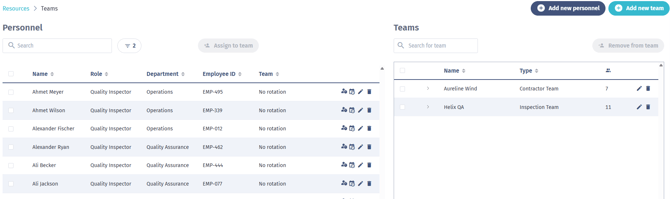
- Use the Teams panel to view, search, add, edit, or delete teams.
The page also shows personnel, so you can manage employees and teams from the same area.
Before you start
You may need the correct permissions to see or change team information.
- You need access to Personnel & Teams to open the Teams page.
- You need permission to create teams to see the Add new team button.
- You need permission to delete teams to delete one or more teams.
- Some work package fields may be restricted if your role does not allow work package updates.
- Team management is not available while working offline.
Make sure the following setup is already available before creating teams:
- Team types
- Departments
- Work packages, if used
- Team compositions and positions, if used
- Employees, if you want to assign personnel to teams
Add a new team
- Go to Resources > Teams.
- Click Add new team.
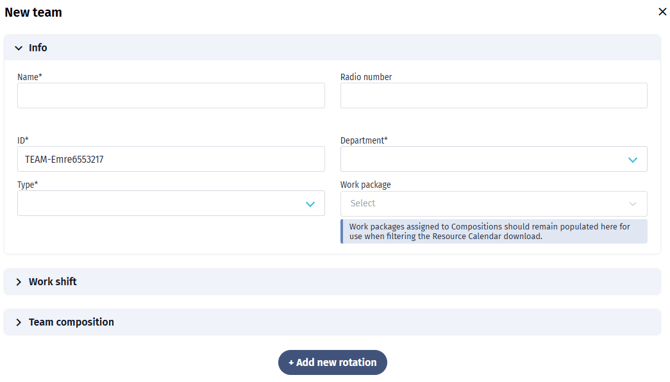
- Complete the required information in the Info section:
- Name
- Team ID
- Type
- Department
- Add optional information, such as:
- Radio number
- Work package
- Organizations
- In the Work shift section, select:
- Work shift start
- Work shift end
- In the Team composition section, add the relevant composition if your team uses one.
- Review the information.
- Click Save.
After saving, the team appears in the Teams table.
Edit an existing team
- Go to Resources > Teams.
- Find the team in the Teams table.
- Use the search field if needed.
- Click the edit icon for the team, or double-click the team row.
- Update the team details.
- Click Save.
Changes are saved immediately after you confirm them.
Add or edit team compositions
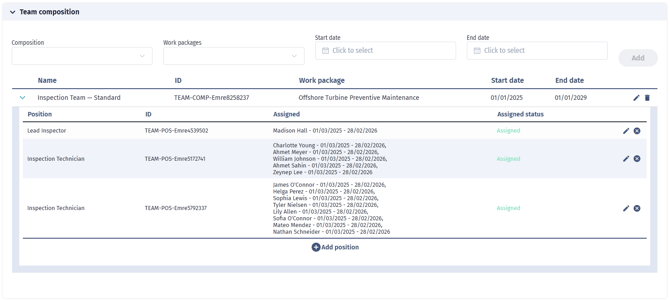
A team composition defines the roles or positions expected within a team. Each composition can optionally be linked to a work package and a date range to scope it to a specific period or project.
- Open the team.
- Go to the Team composition section.
- Select a Composition.
- Optional: select a Work package.
- Optional: set a Start date and End date.
- Click Add.
- Review the added composition in the table.
- Click Save on the team.
If the selected work package has start and end dates, those dates are filled in automatically. You can adjust them if needed.
Edit a team composition
- Open the team.
- Go to Team composition.
- Click the edit icon beside the composition.
- Update the work package, start date, or end date.
- Confirm the inline edit.
- Click Save on the team.
The team cannot be saved while a composition or position edit is still open. Confirm or cancel the inline edit first.
Add or remove positions in a composition
- Open the team.
- Expand the relevant composition.
- Click Add position.
- Select the position.
- Confirm the position.
- Click Save on the team.
New positions are added with a pending status until they are assigned.
To remove a position, click the delete icon beside it in the composition. If the position is already assigned to employees, Shoreline asks you to confirm the impact before the removal is applied.
Manage team members
Team membership in Shoreline is managed through employee work schedules and rotations. Adding or removing an employee from a team always updates their underlying schedule or rotation record.
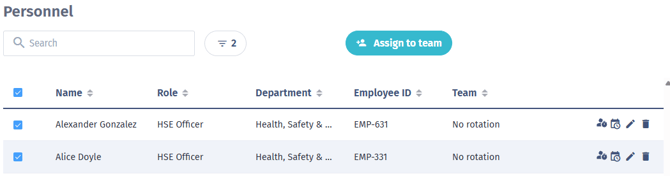
You can assign employees to a team from the Personnel & Teams page by:
- Selecting employees and assigning them to a team
- Dragging employees onto a team
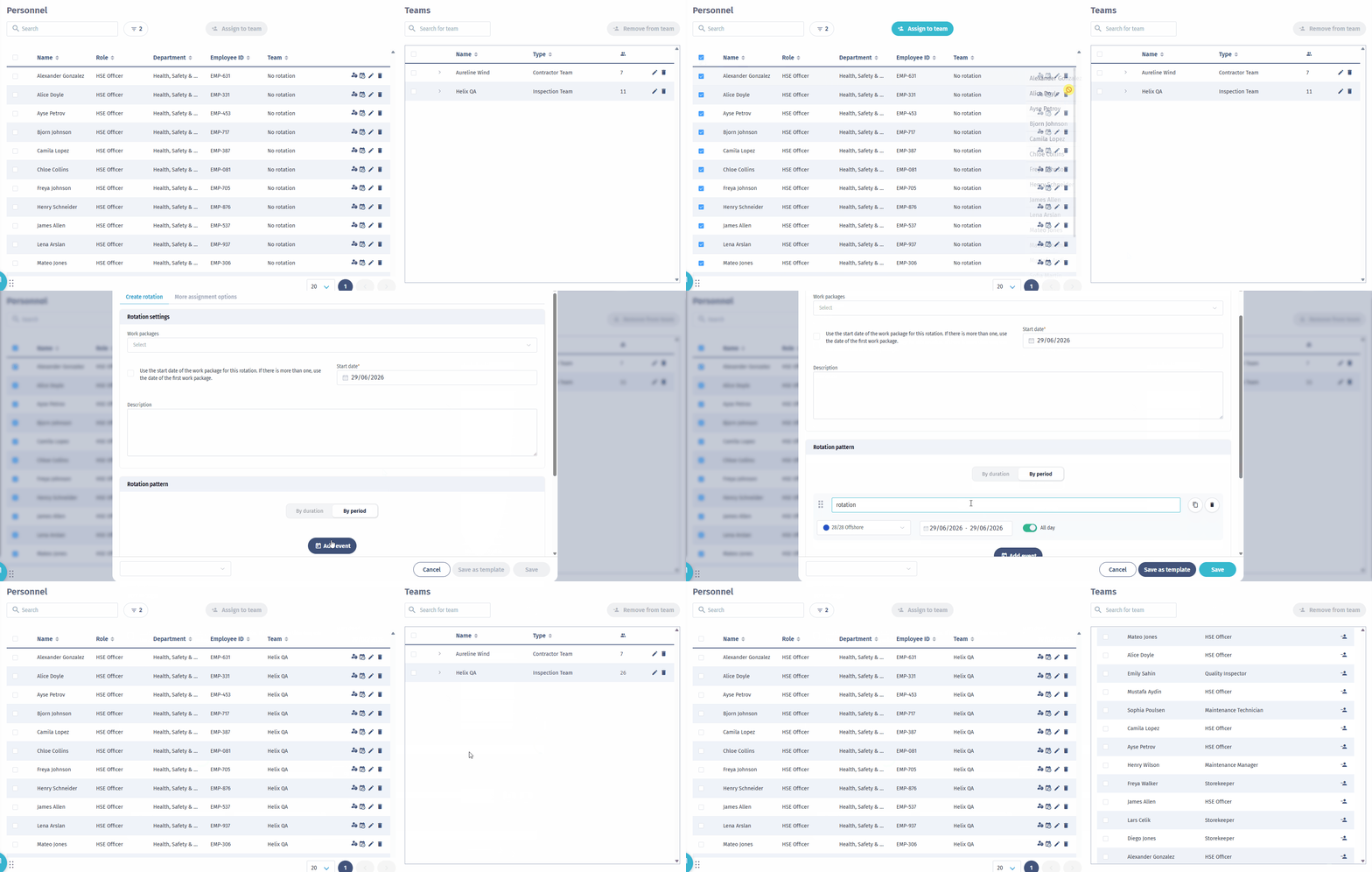
- Creating or editing a rotation for an employee
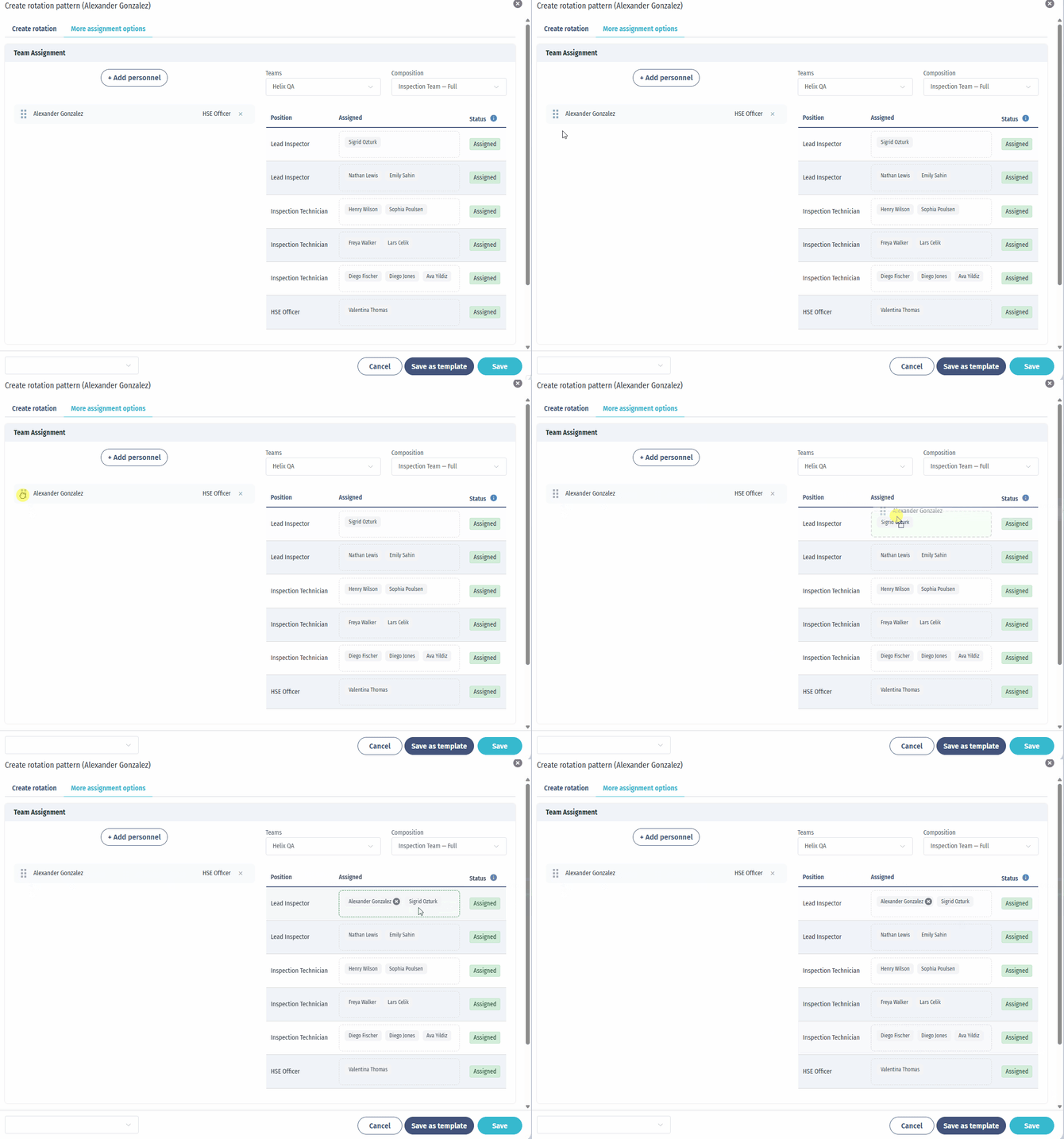
- Opening a team and creating a new rotation from the team details

The Teams table shows how many employees are currently on each team. Expanding a team shows the current team members.
Remove employees from a team
- Open Resources > Teams.
- Expand the relevant team.
- Select the employee or employees to remove.
- Click Remove from team.
- Confirm the change if prompted.
Removing employees from a team updates their team assignment through their work schedule or rotation.
Available team settings
| Section | Field | Required | Description |
|---|---|---|---|
| Info | Name | Yes | The team name shown in lists and planning views. |
| Info | Team ID | Yes | A unique identifier for the team. Shoreline can generate one automatically. |
| Info | Radio number | No | The team’s radio or communication number. |
| Info | Type | Yes | The team type, configured in account settings. |
| Info | Department | Yes | The department the team belongs to, configured in account settings. |
| Info | Work package | No | One or more work packages linked to the team. |
| Work shift | Work shift start | Yes | The normal start time for the team’s shift. |
| Work shift | Work shift end | Yes | The normal end time for the team’s shift. |
| Team composition | Composition | No | A predefined composition for the team. |
| Team composition | Work package | No | A work package linked to the selected composition. |
| Team composition | Start date | No | The start date for the composition. Can be filled from the selected work package. |
| Team composition | End date | No | The end date for the composition. Can be filled from the selected work package. |
| Team members | Employees | No | Employees currently assigned to the team through active schedules or rotations. |
Team composition statuses
Positions in a team composition can have different statuses:
- Pending: The position exists but is not yet assigned.
- Assigned: The position is assigned to one or more employees.
- Unassigned: The position is marked as not assigned.
If you change or remove an assigned position, Shoreline may ask you to confirm the impact on related employee rotations or work schedules before applying the change.
Permissions and limitations
- Team management is disabled offline.
- The Resources area is not available on mobile in some account setups.
- The Add new team button is only visible if your role allows team creation.
- Delete actions are only visible if your role allows team deletion.
- The Save button is disabled while Shoreline is checking whether the Team ID is unique.
- The Save button is disabled if the Team ID already exists.
- The Save button is disabled while a team composition or position edit is still open.
- Inactive employees and employees on notice cannot be assigned to a team.
- If you link a work package to a team composition, Shoreline automatically adds it to the team’s work package list in the Info section.
- Removing assigned positions can affect employee rotations or work schedules and may require confirmation.
Troubleshooting
I cannot see Teams under Resources
Your role may not include access to Personnel & Teams. Contact your Shoreline administrator to request access.
I cannot add a new team
You may not have permission to create teams, or you may be offline. Reconnect to the internet and try again. If the Add new team button is still unavailable, contact your Shoreline administrator.
The Save button is disabled
Check whether:
- A required field is missing
- The Team ID already exists
- Shoreline is still checking the Team ID
- A team composition or position edit is still open
- You are offline
I cannot select or update work packages
Your role may not include permission to update work packages. Contact your administrator if you need access.
An employee cannot be assigned to a team
Inactive employees and employees on notice cannot be assigned to a team. If the assignment is required, update the employee's status in Shoreline first, then retry the assignment.
The team member count does not look correct
The team member count reflects only employees who are currently assigned to the team through an active work schedule or rotation. Employees with expired, inactive, or future-dated rotations are not included in the count. To investigate a discrepancy, open the employee record in Shoreline and review their rotation dates, rotation status, and team assignment.