Overview of automatic inventory grouping
Inventory items with the same name are now automatically grouped together in the inventory list. This makes it easier to view quantities, track stock across warehouses, and manage limits for each item name.
Each group displays a summary row with total quantity and other key information. You can expand a group to view individual inventory items beneath it.
The list automatically updates as new inventory items are added, ensuring that all items sharing the same name are grouped correctly without manual setup.
💡 Tip: This automatic grouping replaces the previous manual grouping system. You no longer need to manually organize inventory items under each object.
⚙️Setting up and linking inventory groups
To make automatic grouping work correctly, each inventory name must belong to an inventory group. Once a group is defined, any new inventory items created under that name will automatically appear in the correct group in the inventory list.
🔧 How it works
-
Create an Inventory Group (for example: “Bolts”).
-
Assign one or more Inventory Names to that group (for example: M10 Bolt, M12 Bolt).
-
When a new inventory item is added with that name (for example: 10 M10 Bolts), it automatically appears in the Bolts group in the inventory list.
This ensures that all related inventory items are automatically categorized and summarized under the same group, giving you a clear view of total quantities, stock levels, and warehouse limits.
🧭 Step-by-step: Creating and linking inventory groups
-
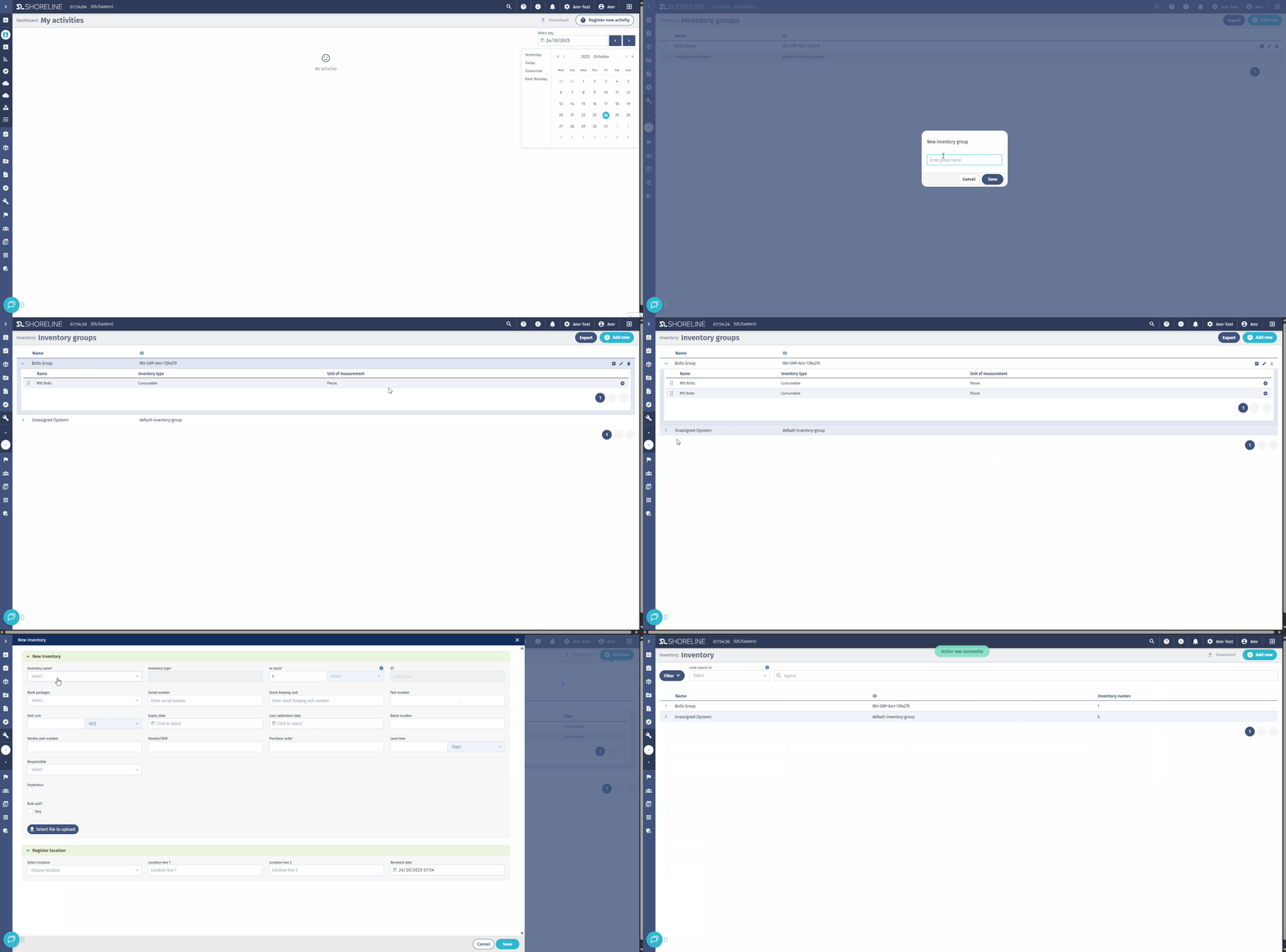
Go to Inventory → Inventory groups.
-
Click + Add new to create a group and give it a descriptive name (e.g., Bolts, Cables, Filters).
-
In the Group details, assign one or more inventory names to the group by clicking on the plus sign next to the group name, and select the desired inventory name from the dropdown.
-
When new inventory items are added under those names, they will automatically appear in the correct group in the inventory list.
To create an inventory group and enable automatic item grouping, follow the steps below:
📉 Inventory minimum quantity
Overview
The minimum quantity helps you define a threshold for when inventory should be replenished. It acts as an early warning that stock for a specific item is running low, allowing you to plan purchases or transfers before you run out.
Minimum quantities let you define reorder thresholds for specific inventory items in a specific base or warehouse.
When the available quantity of an item drops below the defined minimum, the system highlights it in the inventory list — helping you quickly identify low-stock items and restock before shortages occur.
How It works
-
Minimum quantities are configured per base (warehouse) and per inventory name.
-
Each base can have its own unique minimum threshold for the same item name.
-
When an item’s available quantity in that base drops below the minimum, it is automatically flagged in the inventory list.
-
You can then use the “Below Minimum” filter to quickly view all items that have fallen under their set thresholds.
💡 Example:
You define a base called Warehouse A and set a minimum quantity of 50 for the inventory name Bolts.
When the total number of Bolts in Warehouse A drops below 50, the system highlights the item in red.
You can then filter your inventory list to display all Below Minimum items, making it easy to spot what needs restocking.
⚙️ Setting a minimum quantity
-
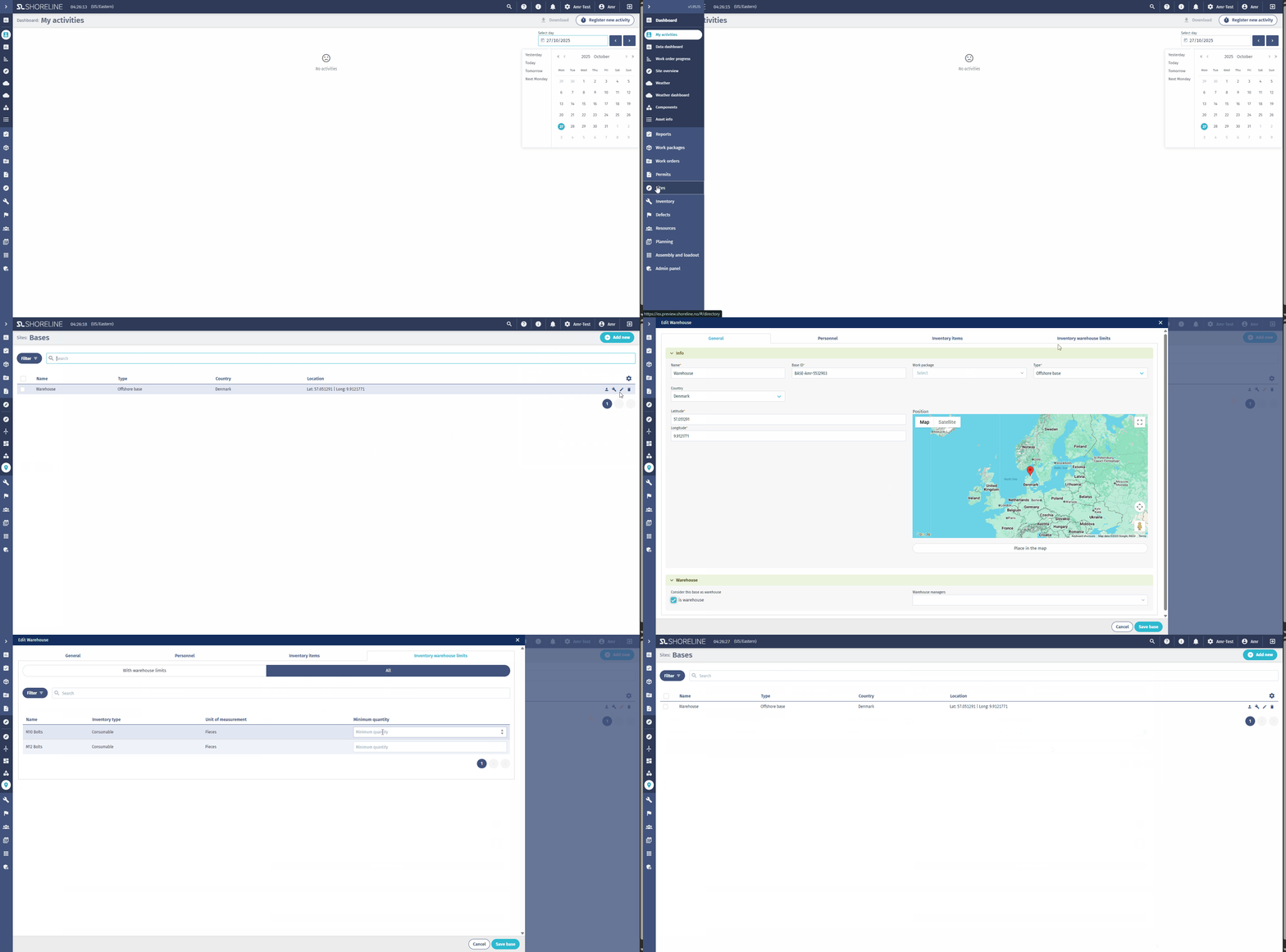
Go to Sites → Bases.
-
Select the Base (e.g., Warehouse A) where you want to define minimum levels.
- First you need to define the base is a warehouse by clicking the "is warehouse" check box at the bottom of the page.
-
This will open a new tab called Inventory warehouse limits which you should navigate yourself to.
- Click on the "All" tab.
-
Enter the Minimum quantity threshold (e.g., 50).
-
Click Save.
Follow the steps shown below to set a minimum Quantity:
🧭 Viewing items below minimum
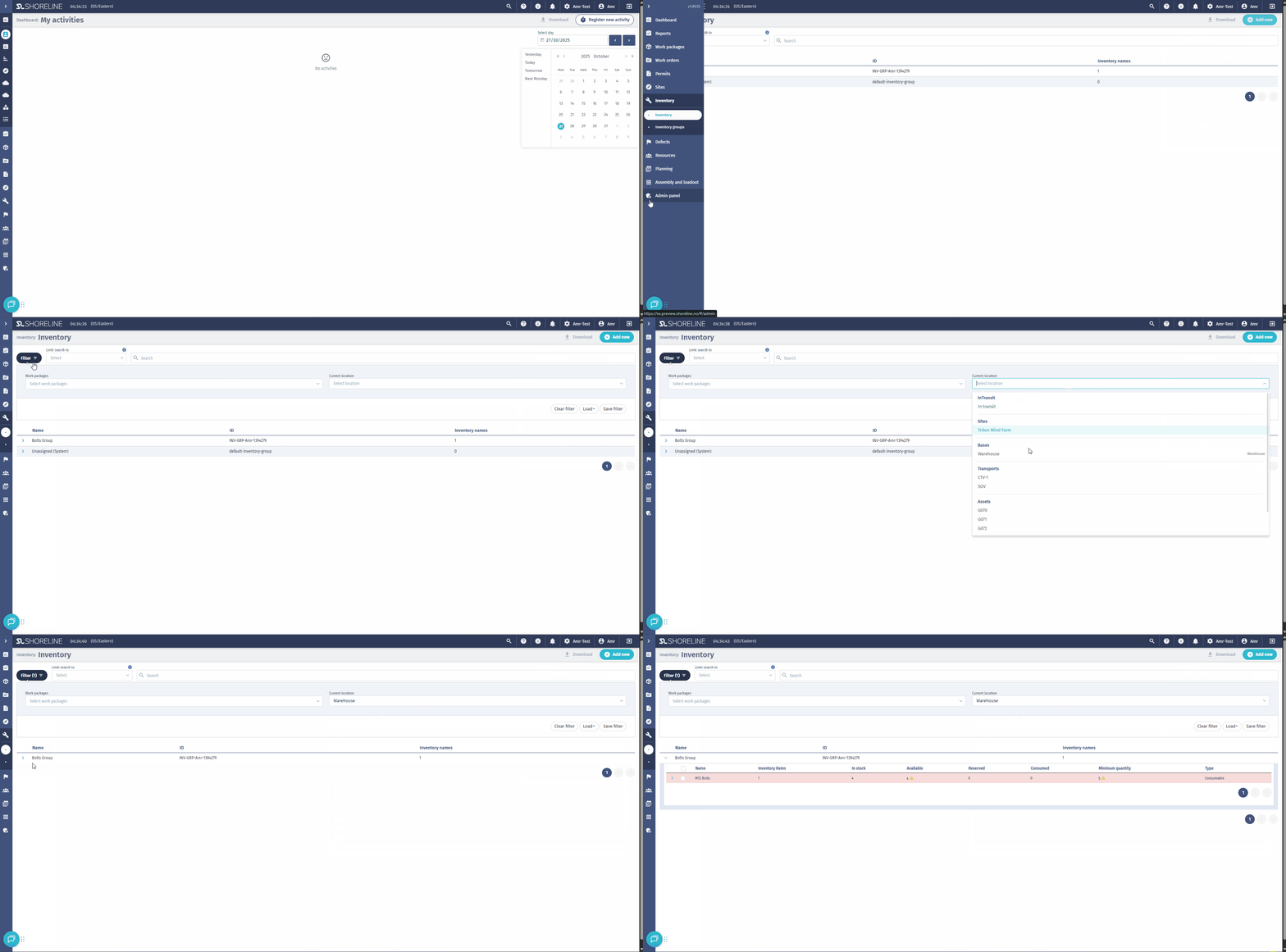
To identify low-stock items:
-
Go to the Inventory page.
-
Click on the Filter button on the top left of the page.
-
Select the correct location from the "Current location" dropdown
-
Any item below its defined threshold will appear with a red indicator.
This gives you an instant overview of items that require replenishment in that specific warehouse.
Follow the steps shown below to view items below minimum: