
The Resource calendar gives planners and managers a calendar-based overview of personnel, vessels, work schedules, rotations, teams, bases, work packages, and activities. Use it to see who is available, who is assigned to work, where personnel are based, and how planned work affects resource utilization.
You can use the calendar to:
- Review personnel and vessel schedules
- Add rotations and personnel activities
- Edit individual work schedules
- Open, edit, or delete rotations
- Move, extend, contract, or delete selected work schedules
- Filter personnel by relevant criteria
- Customize what calendar information is shown
- Export resource calendar, manpower plan, and man-hours summary reports
Table of Contents
- Where to find the Resource calendar
- Calendar views and controls
- What does the Resource calendar show?
- Add rotations and activities
- Edit work schedules
- Edit or delete rotations
- Move, extend, contract, or delete work schedules
- Filter and search the Resource calendar
- Customize the calendar display
- Download reports
- Prerequisites and limitations
- Troubleshooting
Where to find the Resource calendar
- Go to Resources.
- Select Resource calendar.
The Resource calendar is available from the desktop web application. It is not available offline.
Calendar views and controls
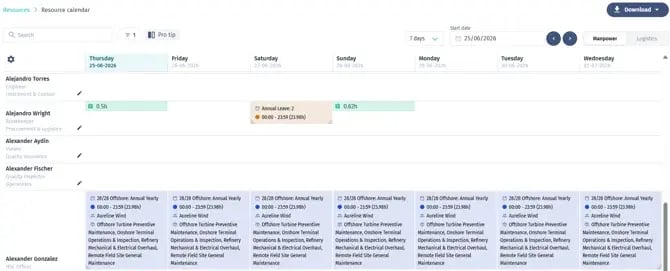
Use the controls at the top of the calendar to choose what you want to review.
Date range
Select the calendar start date and choose one of the available view lengths:
- 7 days
- 30 days
- 60 days
- 90 days
The calendar remembers your last selected view length for the next time you open it.
Personnel per page
Choose how many personnel rows to show per page:
- 20
- 40
- 60
- 80
- 100
Pagination is available when the personnel list has more results than the selected page size.
Resource type
Use the resource type switch to change between:
- Manpower: shows personnel
- Logistics: shows vessels
Activities are available for personnel only.
What the calendar shows
Each row represents a person or vessel. Each column represents a date in the selected period.
Depending on your display settings, the calendar can show:
- Work packages
- Rotation types
- Bases
- Work schedules / shifts
- Teams
- Activities
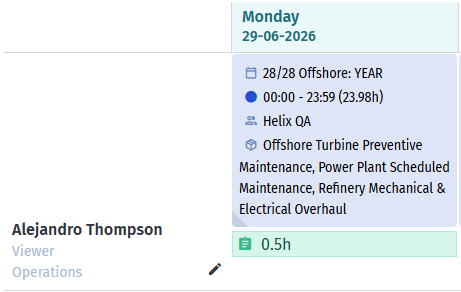
Rotation colors follow the rotation type colors configured in your account. If more than one work schedule exists on the same day, the calendar shows a warning indicator so you can identify overlaps or conflicts.
If a person has expired or soon-to-expire certificates, an alert icon appears next to the person’s name. Select the icon to review the certificate details.
Add rotations and activities
- In the calendar, find the relevant person or vessel and date.
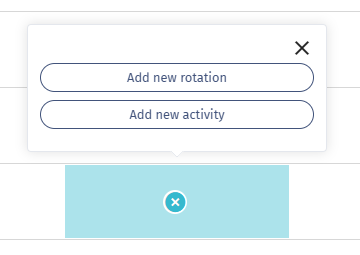
- Select the plus icon in the calendar cell.
- Choose one of the available options:
- Rotation
- Activity: personnel only
- Complete the required information.
- Select Save.
Rotation inputs
When creating a rotation, you may be asked to select:
- Rotation type
- Description
- Work package
- Start and end date/time
- Shift start and end time
- Team and team position
- Base or vessel, where relevant
- Travel days, where relevant
The available fields depend on the selected rotation type and whether you are creating a personnel or vessel rotation.
Activities
Activities are created for personnel. When you add an activity from the calendar, the selected person and date are prefilled. Complete the remaining activity details and save.
Edit work schedules
A work schedule is a specific shift generated from a rotation.
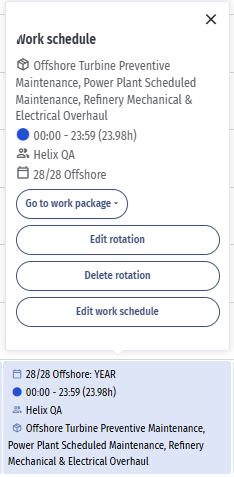
- Select a work schedule in the calendar.
- Select Edit work schedule.
- Update the Shift start time and/or Shift end time.
- Select Save work schedule.
The work schedule must have a valid start and end time before it can be saved.
Delete a work schedule
- Select a work schedule in the calendar.
- Select Edit work schedule.
- Select Delete work schedule.
- Confirm the deletion.
Deleting a work schedule removes that individual shift from the calendar. It does not necessarily delete the full rotation.
How do I edit or delete a rotation?
Note: Deleting a rotation permanently removes the rotation and all of its associated work schedules. This action cannot be undone. If you want to keep any work schedules, move them to another rotation before deleting.
A rotation is a set of one or more generated work schedules. Rotations can represent work periods, travel, unavailability, vacation, sick days, or other rotation types configured in your account.
To edit a rotation:
- Select a work schedule that belongs to the rotation.
- Select Open rotation.
- Make the required changes.
- Select Save.
To delete a rotation:
- Select a work schedule that belongs to the rotation.
- Select Delete rotation.
- Confirm the deletion.
If the rotation is connected to other users through a shared rotation pattern, you may be asked whether you want to update only one person or all affected people.
Move, extend, contract, or delete work schedules
You can adjust work schedules directly from the calendar.
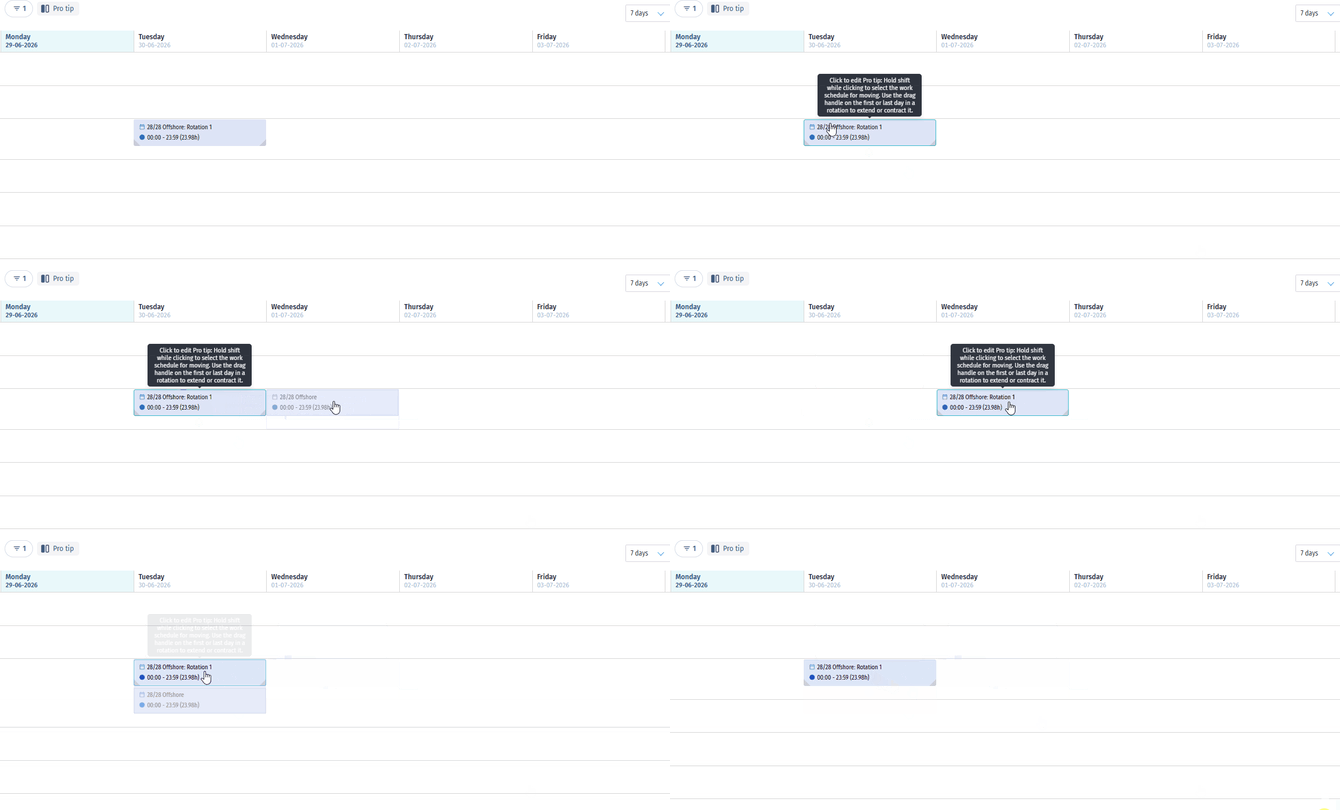
Move work schedules
- Hold Shift and select one or more work schedules.
- Drag the selected schedules to the new date.
- Drop them in the target calendar cell.
- The calendar saves the updated schedule placement.
A preview appears while dragging so you can see where the schedules will be placed.
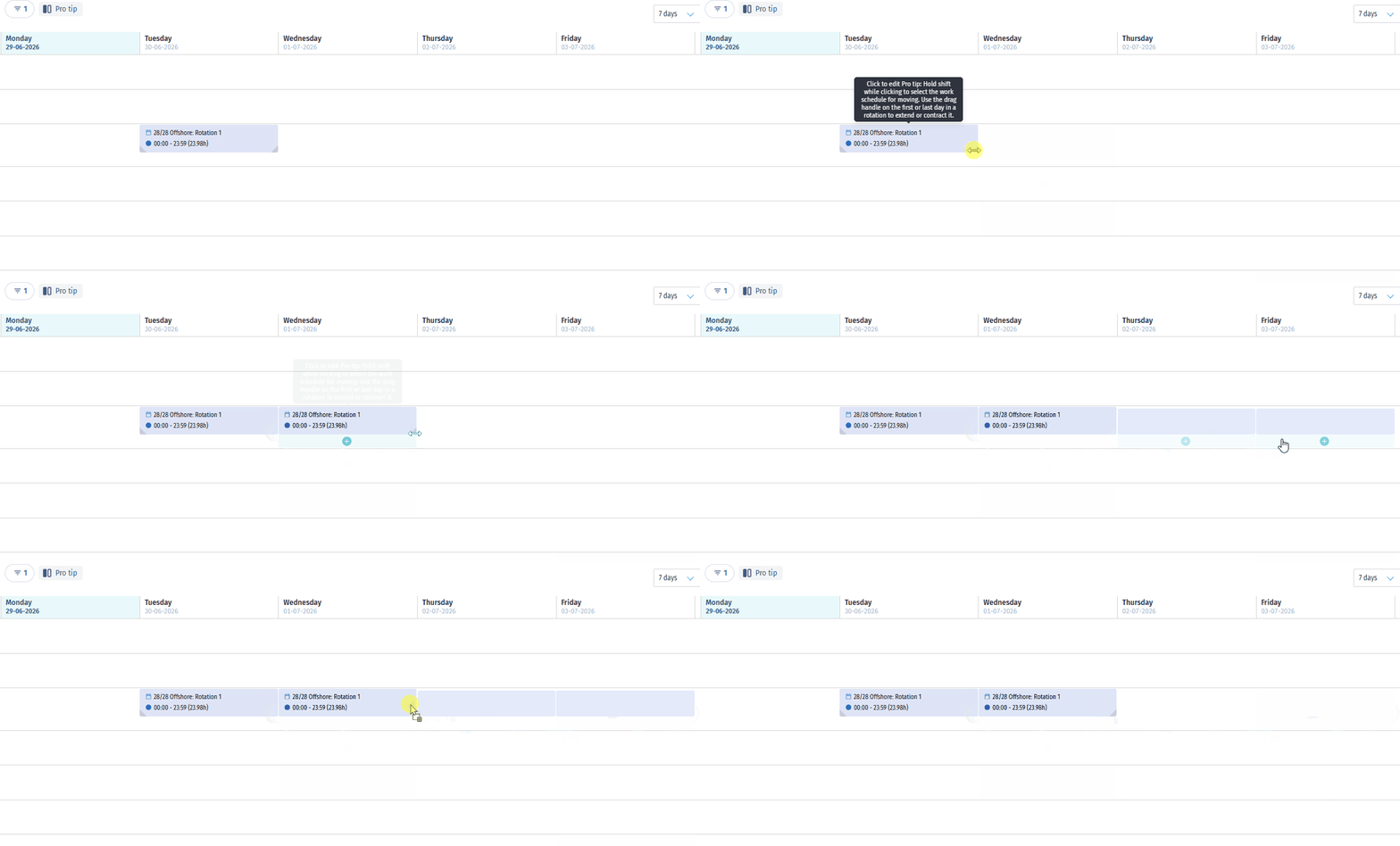
Extend or contract a rotation
- Select the work schedule or rotation block.
- Drag the start or end edge to the new date.
- Drop it to update the rotation length.
The calendar updates the rotation start or end date based on where you drop it.
Delete selected work schedules
- Hold Shift and select the work schedules you want to remove.
- Select Delete from the toolbar or context menu for the selected schedules.
- Confirm the deletion.
Filter and search
Use the filter panel to narrow the calendar to the personnel you need.
You can filter by:
- Personnel
- Work packages
- Departments
- Roles
- Personnel status, if enabled for your account
- Skill groups
- Skills
- Skill status
- Skill date range
- Availability
- Rotation type
- Availability date range
- Custom personnel fields
Availability and rotation filters work together. When filtering by available personnel, you may need to select a rotation type to narrow the result.
If you open the calendar from a work package context, the calendar may be pre-filtered to that work package.
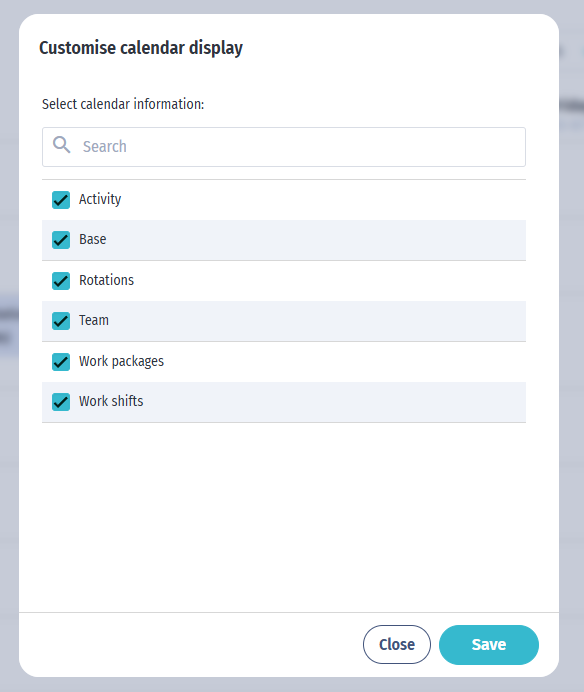
Customize the calendar display
Use the gear icon in the calendar header to choose which information appears in each calendar cell.
You can show or hide:
- Work packages
- Rotation types
- Bases
- Work schedules / shifts
- Teams
- Activities
Your selected display settings are saved to your user profile.
Download reports
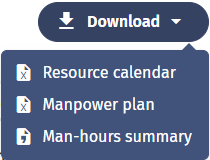
Users with export access can use the Download menu to export calendar data.
The available download options are:
- Resource calendar
- Manpower plan
- Man-hours summary
Export the Resource calendar
The Resource calendar export creates an Excel file for the selected date range. It can include both calendar information and personnel information.
- Go to Resources > Resource calendar.
- Select Download.
- Select Resource calendar.
- Choose the date range.
- To use the dates from a work package, select Work package and choose the relevant work package.
- Choose which calendar information to include.
- Choose which personnel fields to include.
- Search for fields if needed.
- Reorder the selected personnel fields if needed.
- Select Export.
The Resource calendar export can include:
- Work packages
- Rotation types
- Bases
- Work schedules / shifts
- Teams
Activities are shown in the calendar view but are not included as a selectable calendar information option in the Resource calendar export.
The export can also include personnel fields such as standard personnel fields (such as name, role, department, email, and location) and any active custom personnel fields configured in your account. Attachment-type custom fields are not included.
When the export starts, you receive a message that the export has started. The file is prepared in the background and becomes available when ready.
Export the Manpower plan
The Manpower plan export creates an Excel file for selected work packages, teams, dates, and personnel fields.
- Go to Resources > Resource calendar.
- Select Download.
- Select Manpower plan.
- Select one or more Work packages.
- Select one or more Teams.
- Choose the date range.
- To use dates from a work package, select Work package and choose the relevant work package.
- Choose the personnel fields to include.
- Search for fields if needed.
- Reorder the selected fields if needed.
- Select Export.
You must select at least one work package and one team before exporting the Manpower plan.
If the selected work package does not have an end date, the export uses the selected calendar length to calculate the end date.
Export the Man-hours summary
The Man-hours summary creates a CSV file for the selected calendar date range.
- Go to Resources > Resource calendar.
- Select the date range you want to report on.
- Select Download.
- Select Man-hours summary.
The CSV includes each technician and totals for:
- Planned hours
- Unavailable hours
- Available hours
- Utilisation
Utilization is calculated from planned hours and available hours.
Prerequisites and limitations
- The Resource calendar must be enabled for your account.
- You need access to personnel to open the Resource calendar.
- Export options are only visible to users with export access.
- Editing personnel schedules requires permission to update personnel.
- Editing vessel schedules requires permission to update vessels.
- Opening a work package from the calendar requires access to work packages.
- The Resource calendar is not available offline.
- The Resource calendar is designed for desktop use and is not shown in the mobile navigation.
- Activities can be added for personnel, not vessels.
- Inactive or on-notice personnel cannot be assigned to new rotations.
- Some filter options depend on feature settings enabled for your account.
- Attachment-type custom personnel fields are not included in calendar exports.
Troubleshooting
I cannot see the Resource calendar
Check that your user role has access to personnel and that the Resource calendar is enabled for your account. The Resource calendar is not available offline or from the mobile navigation.
I cannot see the Download button
The Download menu is only shown to users with export access. Contact your account administrator if you need to export calendar data.
I cannot edit or delete a schedule
You need permission to update the relevant resource type. Personnel schedules require personnel update access. Vessel schedules require vessel update access.
I cannot add an activity
Activities can only be added in the personnel view. Switch the resource type to Manpower and try again.
The Save button is disabled when creating a rotation
Make sure a rotation type is selected and all required rotation information is complete. If conflict resolution is shown, a scheduling conflict has been detected between your change and an existing work schedule or rotation. Review the conflict options presented — such as overwriting the conflicting schedule or cancelling the action — before saving.
A warning icon appears on a calendar day
A warning icon means more than one work schedule exists for that person or vessel on the same day. Select the schedule to review the details and decide whether it needs to be adjusted.
The Manpower plan export button is disabled
Select at least one work package and one team. Both are required before you can export the Manpower plan.
The export did not download immediately
Large exports may take time to prepare. When the export starts, you receive a confirmation message. The file becomes available when it is ready.