
This release improves planning, execution, reporting, scheduling visibility, and day-to-day usability across core Shoreline workflows.
Planning and execution
Bulk edit work orders
What’s new
You can now update multiple work orders in one action through bulk editing, which makes repeated planning and execution tasks faster.
Where to find it
Work order lists and bulk action workflows.
How to try it
Open a list of work orders, select several items, and use the bulk action menu to apply changes across all selected work orders.
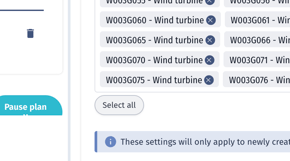
Select all in asset dropdowns
What’s new
Asset selection in work plans is now faster with a “Select all” option in dropdowns.
Where to find it
Work plans and asset selection dropdowns.
How to try it
Open a work plan, go to an asset selection field, and use the dropdown to select all available assets at once.
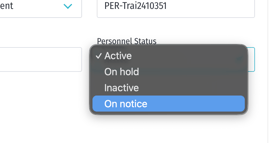
Personnel status visibility
What’s new
Personnel status is now shown more clearly, making it easier to understand availability and current state while planning and executing work. When the status is set to On hold or Inactive the personnel will be blocked from logging in.
Where to find it
Personnel modal and in personnel filters.
How to try it
Open the personnel profile to set the status. Try to filter the calendar or personnel list by status.
Reporting and exports
Work order PDF and CSV export with field selection
What’s new
You can now export work order data to PDF and CSV while choosing which fields to include and using the order you have selected in the work order list.
Where to find it
Work order list export to PDF and CSV.
How to try it
Open the work order list, choose PDF or CSV export, and select different field combinations before generating the file.
Toggle total row in report PDF exports
What’s new
PDF exports now let you decide whether the total row should be included for report sections that have total rows.
Where to find it
Report template settings have a checkbox per section to select if the total row is exported in the PDF or not.
How to try it
Generate a report PDF and switch the total row option on and off to compare the exported output.
Planning and scheduling
Planned date range in Gantt
What’s new
The Gantt chart now supports planned date ranges, making it easier to compare planned timelines with actual and baseline dates. Select what date ranges to compare in the primary and secondary bars, and track changes to planned dates and baseline dates with reasons for change.
Where to find it
Planning board Gantt view and on the work order modal.
How to try it
Open the planning board in Gantt view and compare items that include planned, actual, and baseline dates.
Site overview
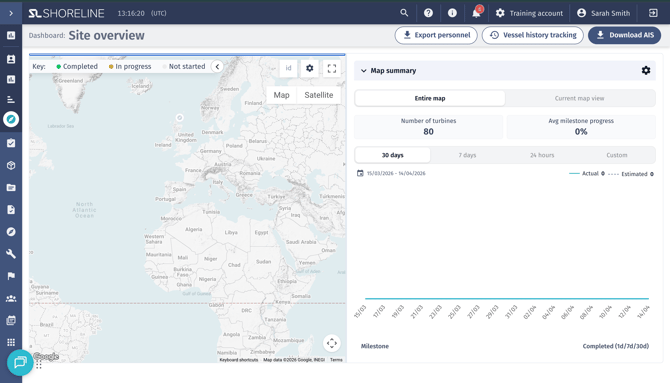
Improved site overview layout
What’s new
Site overview now uses splitters to give a more flexible and manageable layout.
Where to find it
Site overview, the header and sidebar can be expanded or minimized.
How to try it
Open site overview and interact with the layout to see how the split sections improve navigation and screen usage.
Defects and data visibility
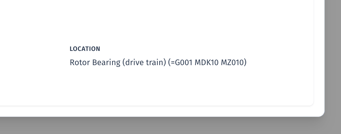
Show location ID on defects
What’s new
Defects now show the related location ID, making it easier to identify and trace where an issue belongs.
Where to find it
Defect modal.
How to try it
Open a defect record and verify that the location ID is visible in the relevant fields or overview.
Permissions and usability
Improved frontend permission checks
What’s new
Frontend permission handling has been improved to make access behavior more consistent and easier to understand.
Where to find it
Across permission-controlled areas of the product.
How to try it
Open workflows with different user roles or permission levels and confirm that access and visibility behave more consistently.
Improved adverse weather inline fields
What’s new
Weather data fields for adverse weather have been adjusted for clearer display and easier use.
Where to find it
Adverse weather events in reports.
How to try it
Open a report with an adverse weather entry and review the weather-related fields to see the updated presentation.