
Shoreline v2.7.0 focuses on resilience and access control. Work orders, checklists, and defects can now be viewed and updated even when your connection drops — turn on offline functionality in User Settings and any changes you make while offline sync automatically once you're back online. On the administration side, module visibility in the sidebar can now be granted independently of the ability to read that module's underlying data, giving admins more precise control over what each Permission Type can see versus access across Checklists, Assets, Sub-Assemblies, Components, Bases, and Equipment. The release also tidies up sidebar navigation with clearer, more distinct icons across the Inventory, Defects, Reports, Work Orders, and Sites submenus.
Work Order Management
Work offline on work orders, checklists, and defects
What's new
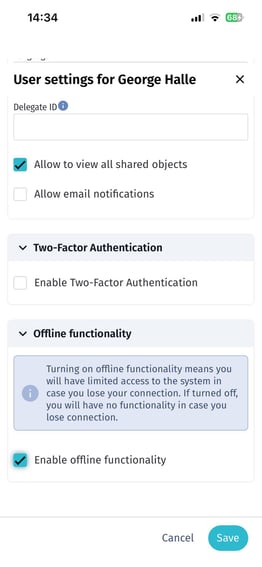
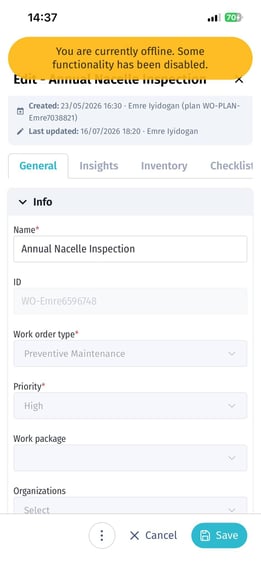
You can now keep working on work orders, checklists, and defects when your connection drops. Turn on Enable offline functionality in your user settings, and Shoreline keeps a local copy of your recently viewed work orders, checklists, and defects so you can carry on working. Any changes you make while offline are queued and sent automatically once you're back online.
Where to find it
User Settings > Offline functionality.
How to try it
- Open your user menu and go to User Settings.
- Under Offline functionality, tick Enable offline functionality.
- Go about your work as normal — Shoreline will let you know if your connection drops and switch to offline mode automatically.
Note: This feature is being rolled out gradually, so you may not see it in your account yet.
Account Management
Separate "Access" and "Read" permissions for Checklists, Assets, Sub-Assemblies, Components, Bases, and Equipment
What's new
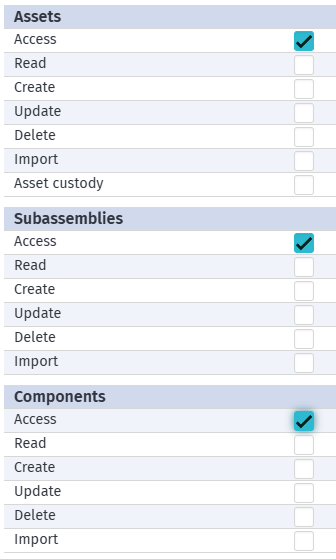
Company admins can now control whether a Permission Type can see a module in the sidebar separately from whether it can read the underlying data. This matters for roles that only need to read related records — for example, a reviewer who reads checklist data inside a report but shouldn't see the Checklists module in their sidebar.
Where to find it
Company Settings > Permission Types, in the Checklists, Assets, Sub-Assemblies, Components, Bases, and Equipment sections of the Permission Matrix.
How to try it
- Go to Company Settings > Permission Types.
- Open the Permission Type you want to update.
- In the relevant section, tick or clear the new Access checkbox to show or hide that module in the sidebar, independently of the Read checkbox.
Note: Existing Permission Types keep their current sidebar visibility — Access was automatically switched on wherever Read was already on, so nobody loses access as part of this update.
General Improvements
Clearer submenu icons for Inventory, Defects, Reports, Work Orders, and Sites
What's new
The Inventory groups and Defect control submenu items, along with every All [module] submenu item (All reports, All work orders, All sites, All inventory, All defects), now have their own distinct icons instead of repeating the parent category icon — making the sidebar easier to scan.