
Work orders and planning
Secondary work order type
What's new: Work orders now have an optional Secondary type field alongside the existing work order type. Use it to add a second level of classification, for example, to separate checklist work orders within a Preassembly or Commissioning plan. You can filter by secondary type in the work order list and filter and group by it in the Work Order Progress dashboard.
Where to find it: Configure the available values in Account settings > Work orders > Work order secondary types. Set the value when creating or editing a work order, or across several work orders with bulk edit.
How to try it:
- Add one or more secondary type values in settings.
- Open a work order and select a value in the Secondary type field.
- Go to the Work Order Progress dashboard and filter or group by Secondary type.
Note: Secondary type is optional. Existing work orders are not affected until you set a value.
Configurable automatic status transitions
What's new: You can now choose whether two automatic work order status changes happen in your account:
- Approving a work order as Finished automatically moves it to Closed.
- Registering time on a work order's General activity automatically moves it to Being planned.
Each setting can be switched on or off independently. When a setting is off, you move the work order to the next status manually.
Where to find it: Settings > Work orders > Status mapping, in the new transitions section below the status tiles [CONFIRM: final section and toggle labels].
How to try it:
- Go to the work order status mapping settings page.
- Switch off the transition you want to control manually.
- Approve a Finished work order, or register time on a work order, and confirm the status no longer changes automatically.
Note: Both settings are on by default, so existing behaviour is unchanged unless you switch them off.
Select all assets by type in work plans
What's new: When selecting assets in a work plan, you can now select every asset of one type in a single action, for example all turbines or all foundations, instead of selecting them one by one. The existing option to select all assets of every type is unchanged.
Where to find it: The asset selector on the plan details view and on the work order template in Work plans.
How to try it:
- Open a work plan and go to the plan details or the work order template.
- Open the select-by-type dropdown [CONFIRM: exact label] and choose an asset type.
- Confirm that all assets of that type are selected.
Resizable columns in work order, activity and defect tables
What's new: You can now resize columns in the main Work orders, Activities, and Defects tables by dragging the column edge. Your column widths are remembered the next time you open the table.
Where to find it: The main work order, activity, and defect tables.
How to try it:
- Open one of the tables.
- Hover over the edge of a column header and drag to resize.
- Leave the page and return to confirm the width is kept.
Note: Column widths are saved in your browser, so they apply to the device and browser you set them on.
Personnel, access and site induction
Site induction and external user invites
What's new: You can now manage site inductions directly in Shoreline and invite external people who do not yet have an account.
- Invite external people by email. They receive a one-time link to claim their account and set their own password.
- Add existing personnel to a site induction, individually from the site's induction tab or in bulk from the site list.
- Approvers can approve or reject inductions, individually or in bulk. Rejections include a free-text reason.
- Each induction shows a status: Pending approval, Approved, Rejected, or Access revoked.
- Add an optional induction criteria note to each site.
- Cancel an invitation, resend or request a new link, revoke access, or resubmit after a rejection.
- In-app and email notifications are sent when an induction changes status.
Where to find it: The Induction tab on each site [CONFIRM: exact tab label and navigation path].
How to try it:
- Open a site and go to its induction tab.
- Add existing personnel or invite an external person by email.
- As an approver, approve or reject the pending induction.
Sensitive skill attachments
What's new: When you upload a file to a skill in the employee modal, you can now mark the attachment as sensitive. Only users with the new sensitive skill attachment permissions can view, upload, update, or delete sensitive files.
New permissions under Personnel:
- Read sensitive skill attachments
- Create sensitive skill attachments
- Update sensitive skill attachments
- Delete sensitive skill attachments
Where to find it: The Skills section of the employee modal. Assign the permissions in the permission matrix.
How to try it:
- Give a permission type for the sensitive skill attachment permissions.
- Open an employee, upload a file to a skill, and mark it as sensitive.
- Sign in as a user without the permissions and confirm the file is protected [CONFIRM: hidden or shown as unavailable].
Sensitive personnel custom fields
What's new: Personnel custom fields can now be marked as Sensitive. Users without permission see Restricted content instead of the value, and cannot edit it.
New permissions under Personnel:
- Read sensitive custom fields
- Update sensitive custom fields
Sensitive values are also protected outside the employee modal:
- Employee lists, the resource calendar, and lookups do not show sensitive values to users without read permission. Your own profile still shows your own data.
- Personnel CSV exports and resource calendar XLSX exports show Restricted content in sensitive columns for users without read permission.
- In personnel imports, sensitive fields are disabled in the mapping screen and ignored during the import for users without update permission. Existing values are not changed.
Where to find it: Mark fields as sensitive in Company settings > Personnel > Custom fields. Assign the permissions in the permission matrix.
How to try it:
- Switch on Sensitive for a personnel custom field.
- Give a permission type the sensitive custom field permissions.
- Open an employee as a user without the permissions and confirm the value shows as Restricted content.
Note: Super admins can always read and update sensitive custom fields. Personnel imports through the Public API are not affected by these permissions.
Bulk work package access sharing
What's new: You can now share access to several work packages at once, instead of one at a time for multiple personnel.
Where to find it: Work package > Share for multiple personnel
Mobile
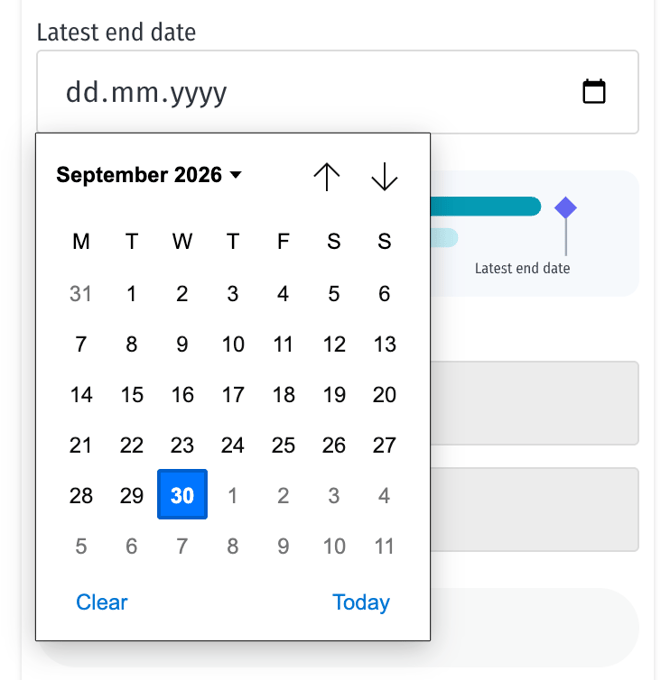
Improved date and time picker on mobile
What's new: Selecting dates and times on mobile devices is now easier, with a picker designed for touch screens.
APIs and integrations
Integration ID
What's new: Shoreline objects now support an Integration ID: a reference to the matching record in an external system, such as an ERP or CMMS.
- The integration ID is shown at the bottom of the object's modal when one is set.
- All CSV exports and Public API exports include the integration ID where it exists.
- You can set integration IDs through CSV imports.
- A new Public API endpoint lets you set the integration ID on an object by its Shoreline ID or external ID.
Where to find it: In object modals, CSV imports and exports, and the Public API documentation.
Report export endpoint (MCP-enabled)
What's new: A new Public API endpoint lets you export reports together with their report context and inclusion metadata. The endpoint is also available through the Shoreline MCP Server.
Where to find it: The Public API documentation and the Shoreline MCP Server article.
File uploads through the API for work orders
What's new: You can now upload files to work orders through the Public API.
Where to find it: The Public API documentation.
Activity category ID in reports, exports, and the API
What's new: The activity category ID is now included in reports, exports, and the Public API, making it easier to map activities to categories in external systems.
Bug fixes
- The Skill Matrix download now refers to Competencies instead of Skill tag, in line with the skills taxonomy changes in 2.8.0.
- On the Work orders page, a search no longer stays applied in the background after you navigate away and return with an empty search field.
- Work order exports now show consistent Actual start date and Actual end date values.
- Fixed an issue where activity start dates were exported incorrectly through the Public API.
Upgrade notes
| Change | What you need to do |
|---|---|
| Automatic status transitions | Nothing. Both transitions stay on by default. Switch them off in settings if you need manual control. |
| Sensitive skill attachments and custom fields | Assign the new permissions to the permission types that should access sensitive data [CONFIRM: default state of new permissions]. |
| Secondary work order type | Configure values in settings before use. |
| Resizable columns | Nothing. Column widths are saved per browser. |