
This guide explains how to configure user permissions to allow an external client to access your system solely for approving reports, without granting access to modify other system data.
Permission Configuration
Step 1: Create a New Permission Type
- Navigate to Settings → Account Settings → Permission Types
- Click "Create New Permission Type"
- Name it descriptively (e.g., "External Approver" or "Client Approval Only")
Step 2: Configure the Permission Settings
In the permission s matrix configure the following:
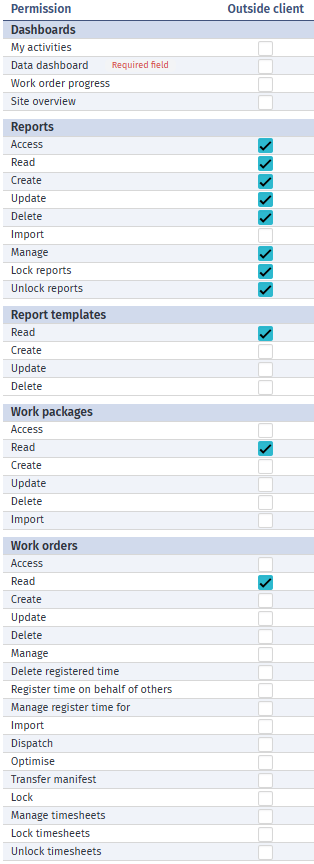
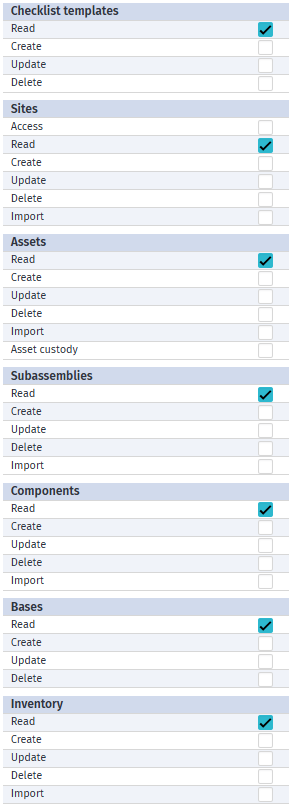
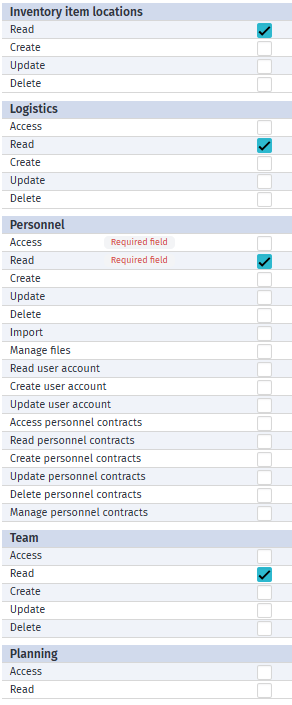
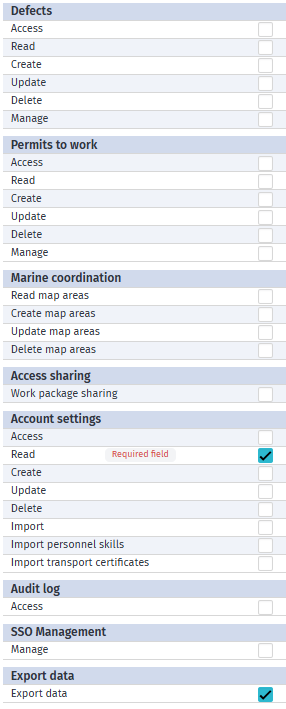
Step 3: Create the External User Account
-
Navigate to Settings → Users
-
Click "Add New User"
-
Fill in the user details:
- Name: Client contact name
- Email: Client email address
- Permission Type: Select the "External Approver" permission type you created
-
Click Save
Step 4: Notify the Client
The external client will receive login credentials via email. They should:
- Log in to the system using their provided credentials
- Access the Reporting module
- View pending reports awaiting approval
- Click Approve or Reject on individual reports
Accessible Features
- ✅ Dashboard with pending approval items
- ✅ Report approval interface
- ✅ Ability to approve/reject reports
- ✅ View basic report details needed for approval
Approval Workflow
Once configured, the approval process works as follows:
- Internal staff creates and submits a report for approval
- System notifies the external approver (optional: configure notifications)
- External client logs in and sees pending approvals
- Client reviews the report details
- Client approves or rejects with optional comments
- System updates the report status automatically