
This guide shows you how to connect Claude to your Shoreline data using the connection details Shoreline has provided, and how to use it to explore your data, run analyses, and build dashboard-style summaries. No prior setup experience is assumed.
1. What this lets you do
Once connected, you can ask Claude — in plain language — to retrieve information from your Shoreline environment and turn it into summaries, comparisons, tables, charts, and exportable documents. Instead of navigating screens and exporting spreadsheets by hand, you describe what you want and Claude assembles it.
The connection is made through MCP (Model Context Protocol), the standard mechanism Claude uses to securely connect to external systems. You set it up once in your own Claude account, and it stays available for future conversations.
2. What you need before you start
Shoreline will provide you with three things:
- A connection URL for the Shoreline MCP server.
- A username.
- A token (treat this like a password — see the security note in section 9).
You will also need a Claude account on a plan that supports adding custom connectors.
Note: If you don't have your connection details please reach out to your Customer Success Manager (CSM). If you aren't sure whether your Claude plan supports custom connectors, please contact your IT team or Claude support.
3. Setting up the connection
The exact wording of the buttons may vary slightly as Claude's interface evolves, but the flow is:
- Open Claude and go to Settings → Connectors (on web or desktop).
- Choose to add a custom connector (sometimes labelled Add custom connector or Connect an MCP server).
- Enter the connection URL Shoreline gave you.
- When prompted to authenticate, enter the username and token Shoreline provided.
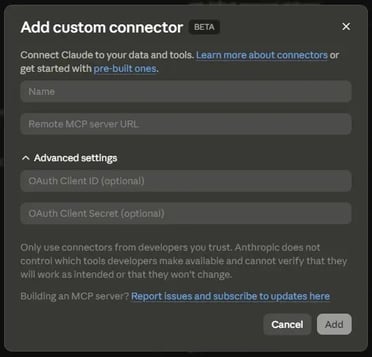
- Save, and confirm the connector shows as connected.
- Start a new chat. The Shoreline connector's tools are now available to Claude.
If the connector doesn't appear to work after this, see section 8 (Troubleshooting).
4. First step after connecting: see what's available
Before building anything, ask Claude what it can now access. This tells you exactly which data and actions your connection exposes — which depends on your Shoreline configuration and your permissions.
Try:
"What Shoreline tools and data do you now have access to? List them and briefly describe what each one returns."
Use the answer to guide the rest of your requests. The examples in section 6 are templates — adapt them to the specific data your connector actually exposes.
5. How to ask for your data
Claude works best when a request names what you're looking at, which record or scope, and what you want back.
Helpful things to include:
- An identifier — a project name/ID, site name, asset name, or reference number.
- A scope — a date range, a status, a location, or a category.
- A desired output — a table, a chart, a comparison, a summary, or a file.
Weak vs. strong request
- Weak: "How are things going?"
- Strong: "For project [name], show current status by work item, and highlight anything overdue or blocked."
If you're not sure of the exact name of something, ask Claude to search first: "Find the project called something like [partial name]."
6. Example prompts (templates — adapt to your data)
Run the discovery step in section 4 first, then adapt these to match what your connector exposes. Replace the bracketed parts with your own values.
- Retrieve project information — "Show me the details and current status of project [name/ID], including key dates and any open items."
- Check site or asset data — "List the assets at site [name] and their current status. Flag any that need attention."
- Get project or account status — "Give me a status overview for [project/site]: what's on track, what's delayed, and what's outstanding."
- Compare projects or datasets — "Compare [project A] and [project B] side by side on progress, status, and any open issues, and summarise the key differences."
- Generate a dashboard overview — "Build me an overview of all my active projects: status per project, plus a chart showing how many are on track vs. delayed."
- Identify missing or inconsistent data — "Check [project/site] for records that are missing key fields or look inconsistent, and list them so I can follow up."
- Trend or time-based view — "Show how [metric] has changed over [time period] for [project/site], and point out anything notable."
- Export a result — "Take the comparison above and put it into an Excel file or a slide deck I can share."
If a prompt returns nothing or an error, it may be that the data isn't exposed by your connection or you don't have permission for it — see section 8.
7. From a question to a dashboard: the workflow
A simple, repeatable loop:
- Frame the question. Decide the metric and the level of detail (for example, "status by project" or "assets needing attention at site X").
- Retrieve the data. Ask Claude to pull the underlying records. Ask it to state what it queried and how many records it found, so you can sanity-check coverage.
- Analyse. Ask for the grouping, totals, comparisons, or trends you need. Check the numbers against the record count from step 2.
- Produce the output. Choose a format:
- Inline chart or table — fastest, renders right in the conversation.
- Excel spreadsheet — for data you want to sort, filter, or keep.
- Slides or a document — for a report or a review meeting.
Note: Each result is a snapshot taken at the moment you ask. It does not refresh on its own. To update it, re-run the prompt. This is a fast way to produce views on demand, not a continuously live BI dashboard.
8. Troubleshooting
- The connector won't connect. Re-check the URL, username, and token for typos, and confirm your token hasn't expired. If it still fails, contact your Customer Success Manager (CSM).
- Claude says it has no Shoreline tools. Start a fresh chat after connecting. If it persists, disconnect and reconnect the connector in Settings.
- A request returns nothing or an error. The data may not be exposed by your connection, or you may not have permission for it. Run the discovery prompt in section 4 to confirm what's available, and check with your CSM about access.
- Numbers look incomplete. Ask Claude how many records it used. If the count is lower than expected, narrow or widen your request and re-run.
9. Getting reliable results — best practices
- Verify before you trust. Ask Claude to report how many records a result is based on, and to include a reference or ID for each item so you can check the source.
- Be explicit about missing data. Tell Claude to list blanks or gaps separately rather than quietly excluding them, so nothing hides inside a total.
- Don't let gaps become guesses. If a value is missing, the answer should say "missing" — not infer it. Ask Claude to separate "the data shows X" from "I'm estimating X."
- Confirm before making changes. If your connection allows creating or editing records, review Claude's proposed change and approve it before it's applied.
- Remember permissions. Claude only sees what your credentials allow. Missing data may reflect a permission boundary, not an absence of data.
- Protect your credentials. Your token is like a password. Don't paste it into a chat message, don't share it, and don't store it in shared documents. If you think it's been exposed, ask Shoreline to reissue it.
10. Questions and support
- For your connection details, access, or data questions, contact your Customer Success Manager (CSM).
- For Claude account, plan, or connector-interface questions, see the Claude help centre.