
Work packages help you collect the information needed for a specific task, campaign, or project in one place. You can group related work orders, activities, assets, personnel, teams, inventory, logistics, and other items so users can quickly find the relevant operational context.
Use work packages to:
- Organize related work by project, phase, site, or campaign
- Track the assets, work orders, and people connected to a task
- View related information from one work package workspace
- Share work package access with relevant users
- Review work package progress using status and item counts
Table of Contents
- Where to find work packages
- Prerequisites and access
- Create a work package group
- Create a work package
- View and navigate a work package
- Add items to a work package
- Add existing assets and related items
- Remove items from a work package
- Edit or delete a work package
- Export work packages
- Available fields and views
- Limitations
- Troubleshooting
Where to find work packages
- Open Shoreline.
- In the left-hand menu, select Work packages.
- Select a work package group from the sidebar.
- Select a work package to open its details.
When you open a work package, the available work package sections appear below it in the sidebar.
Prerequisites and access
Work packages are available only when the feature is enabled for your account.
Your available actions depend on your user permissions:
- Users need work package access to view the Work packages area.
- Users need create permission to create work packages and work package groups.
- Users need update permission to edit work packages.
- Users need delete permission to delete work packages or work package groups.
- Users need export permission to export work package data.
- Creating new linked records, such as assets, may require separate permissions for those record types.
Work packages are not available while working offline. Some actions, such as export, are also disabled when you are offline.
Create a work package group
Work package groups help organize work packages in the sidebar.
- Go to Work packages.
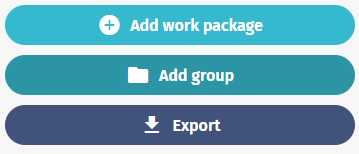
- Click Create group.
- Enter a group name.
- Click Save.
The group is added to the work package sidebar. You can then create or move work packages into that group.
Create a work package
- Go to Work packages.
- Click Add work package.
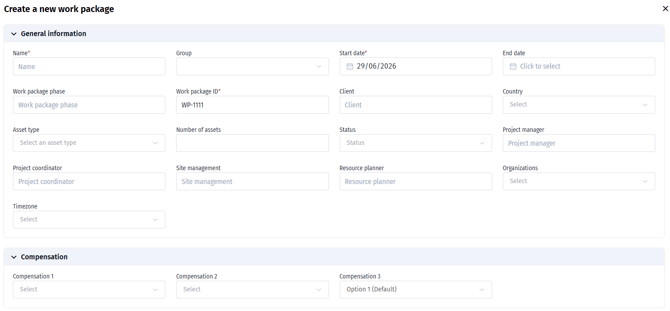
- Complete the required fields:
- Name
- Start date
- Work package ID
- Select a Group, if relevant.
- Complete any optional fields.
- Click Save.
The work package is created and appears in the selected group.
View and navigate a work package
- Go to Work packages.
- Select a work package group in the sidebar.
- Select a work package.
- Use the work package sections to view related information.
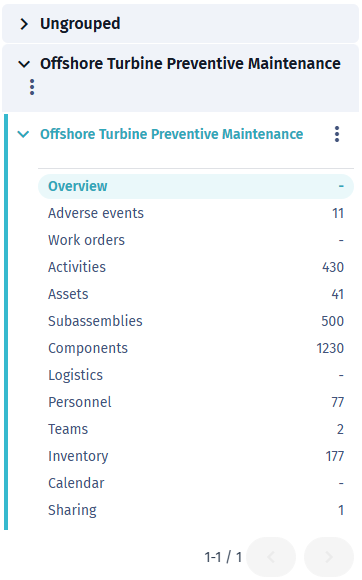
Available sections can include:
- Overview
- Adverse events
- Work orders
- Activities
- Assets
- Subassemblies
- Components
- Logistics
- Personnel
- Teams
- Inventory
- Calendar
- Sharing
Each section shows the items connected to the selected work package. The sidebar may also show item counts for each section.
Add items to a work package
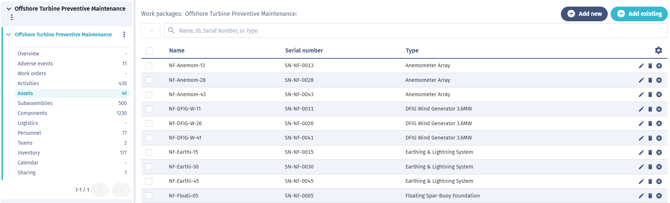
You can add existing items to a work package from the relevant section.
- Open the work package.
- Select the section you want to update, such as Work orders, Assets, Personnel, or Inventory.
- Click Add existing.
- Search, filter, or page through the available items.
- Select the items you want to add.
- Click Save.
The selected items are added to the work package.
Add new items from a work package
Some sections allow you to create a new item directly from the work package.
- Open the work package.
- Select the relevant section.
- Click Add new.
- Complete the required details for the new item.
- Save the item.
When supported, the new item is automatically connected to the current work package.
The Add new option is only shown when you have permission to create that type of item.
Add existing assets and related items
When adding assets to a work package, Shoreline can also include related information connected to those assets.
- Open the work package.
- Select Assets.
- Click Add existing.
- Use the site filter or search field to find assets.
- Select one or more assets.
- Keep the option to include related asset information selected if you want Shoreline to add related connected items as well.
- Click Save.
This helps build a more complete work package around the selected assets.
Remove items from a work package
Removing an item from a work package only removes the connection to the work package. It does not necessarily delete the item from Shoreline.
- Open the work package.
- Select the relevant section.
- Select one or more items, or use the remove icon on a single row.
- Click Remove selected or the remove action.
- Confirm the change if prompted.
After removing items, Shoreline may show an Undo option for a short time.
Edit a work package
- Go to Work packages.
- Find the work package in the sidebar.
- Click the three-dot menu next to the work package.
- Select Edit.
- Update the details.
- Click Save.
You can edit details such as name, group, dates, status, asset type, project roles, country, client, and other available fields.
Delete a work package
- Go to Work packages.
- Find the work package in the sidebar.
- Click the three-dot menu next to the work package.
- Select Delete.
- Confirm the deletion.
Deleting a work package removes the work package. Use this carefully, especially if other users rely on it for planning or coordination.
Edit or delete a work package group
- Go to Work packages.
- Find the group in the sidebar.
- Click the three-dot menu next to the group name.
- Select Edit or Delete.
- Follow the prompt to save or confirm the change.
Export work packages
Users with export permission can export work package data.
- Go to Work packages.
- Click Export.
- Select the export format or options if prompted, then confirm the export. Shoreline starts the export and downloads the file when it is ready.
Export is available only when you are online.
Available work package fields
A work package can include the following details:
| Field | Description |
|---|---|
| Name | The work package name. Required. |
| Group | The work package group used for sidebar organization. |
| Start date | The planned start date. Required. |
| End date | The planned end date. |
| Phase | The project or execution phase. |
| Work package ID | A unique work package identifier. |
| Client | The customer or client connected to the work package. |
| Country | The country related to the work package. |
| Asset type | One or more asset types connected to the work package. |
| Number of assets | The planned or expected number of assets. |
| Status | The current status of the work package. |
| Project manager | The project manager responsible for the work package. |
| Project coordinator | The project coordinator responsible for coordination. |
| Site management | Site management contact or role. |
| Resource planner | Resource planning contact or role. |
| Time zone | Available when enabled for your account. |
| Organizations | Available when enabled for your account. |
| Compensation | Available when enabled for your account. |
Work package statuses
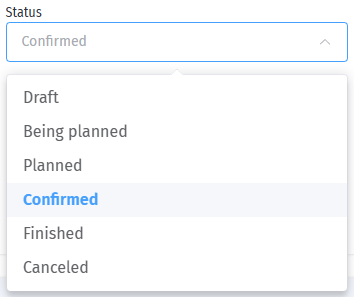
The available statuses are:
- Draft
- Being planned
- Planned
- Confirmed
- Finished
- Canceled
Use statuses to show where the work package is in the planning or execution process.
Filters and search
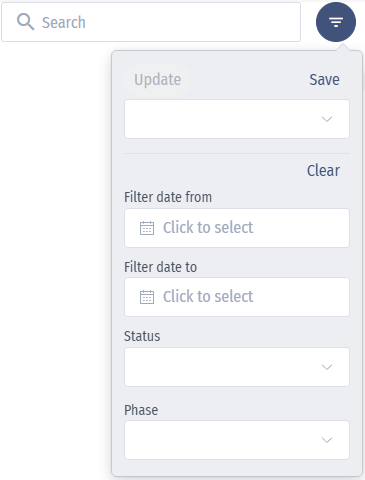
The Work packages sidebar includes filtering to help you find relevant work packages.
Some sections also include their own filters and search fields. For example:
- The Assets section can be filtered by site.
- Asset search can use values such as name, ID, serial number, or type.
- The Work orders add dialog includes work order filters.
- Lists can include pagination when there are many results.
Important limitations
- Work packages are not available offline.
- Work packages may be hidden from mobile navigation.
- Users only see actions allowed by their permissions.
- Export is disabled while offline.
- The work package start date cannot be after the end date.
- The work package end date cannot be before the start date.
- Work package IDs must be unique.
- Some optional fields appear only when enabled for your account.
- Work orders already assigned to another work package may not be available to add to the current work package.
Troubleshooting
Why can't I see Work packages?
Work packages may not be enabled for your account, or your user role may not have access. Contact your Shoreline administrator.
Why can't I create a work package?
You may not have permission to create work packages. Contact your administrator to check your role permissions.
The Save button is disabled
Check that the required fields are complete. At minimum, the work package needs a name and start date. If a required ID field is shown, make sure it is filled in and unique.
I see a warning about the work package ID
The work package ID may already be in use. Enter a unique ID before saving.
Why can't I add a work order?
The work order may already belong to another work package, or you may not have the required permissions.
Why can't I use Work packages offline?
Work packages require an online connection. Reconnect to the internet and try again.
I cannot export work packages
Export requires export permission and an active internet connection. Contact your administrator if the Export button is not available.