
Weather plays a critical role in simulation accuracy, particularly for wind projects. It directly influences key operational parameters such as:
-
Installation duration: Adverse weather can delay activities like jack-up operations or heavy lifts.
-
Accessibility: Weather windows determine when tasks can safely and effectively be carried out offshore.
Failing to model realistic weather conditions lead to optimistic projections and inadequate risk assessments — especially during the construction and O&M phases.
The four weather modes
When configuring your simulation, you can choose from four weather modeling options: Disabled, Historical, Increment Start Year, and Markov.
The option you select to run your simulation on will determine the output you get. We will now explain these options.
1. Disabled
No weather restrictions are considered in the simulation runs.
Use case: Best suited for testing task logic, troubleshooting issues with the weather file, or isolating specific model behaviors without external constraints.
2. Historical
Uses the first year of your weather file for all simulation runs as the starting point in the weather file. The simulator looks at the weather data corresponding to the start date of your simulation case. For example, if you added weather data from 01.01.1980–31.12.2016, and your simulation case starts from Jan 1 of year 1, this corresponds to 1.1.1980 in the weather data.
Use case: When you want to look at variability in the simulation results with the same weather pattern in all simulations, e.g. when you want to look at how much variability comes from the corrective failures in O&M.
Note: For construction simulations that don't have stochastic tasks you will get the same results for every simulation run when you use the Historic option.
3. Increment start year
Each simulation run begins with a different year from your weather file, starting sequentially from the first year.
Run 1: starts the weather data from year 1 in your weather files (simulation year 1 - weather year 1).
Run 2: starts the weather data from year 2, and so on (simulation year 1 - weather year 2).
If the number of runs exceeds the number of years available from the weather file, the simulation will loop back to the first year in the dataset.
Use Case: Recommended for generating outputs including a wider range of weather scenarios, which means your schedules and weather downtime assessments are more robust. This is the recommended method for construction simulations.
Note: For construction cases set the number of runs to the number of weather years you have in the weather file, as the runs will give the same results for the same weather data when the weather data loops and will clutter your outputs.
4. Markov
Utilizes our Markov chain model to generate synthetic weather data based on the weather data set provided.
Use case: Beneficial when you want to run more iterations than you have years in your weather data set. For example when your weather set have a few years only.
Note: For a Markov weather model to work, you need to add a 'Month' column when uploading your weather file.
A Markov model calculates the probability of going from a given weather state (e.g., 1.5 m wave height and 10 m/s wind) to all other weather states that have appeared after that one in your weather dataset. Based on these probabilities, the model can generate a new string of weather states by drawing randomly generated numbers between 0 and 1 for each new state and picking the next state with the closest probability.
Creating synthetic weather data time series in this way is useful when your weather data time series is incomplete, you want to do longer simulation runs than years in the imported weather data time series, or you’re going to run a very large number of simulations.
The accuracy of the newly generated time series improves with the amount of raw import data.
How weather is used in the simulation run
Shoreline simulates sequences and timings of operations in real time and replicates the daily scheduling of work that a planner or dispatcher would do. This is why the simulation require weather input in the time domain instead of statistical input such as e.g., weather window or weather downtime statistics.
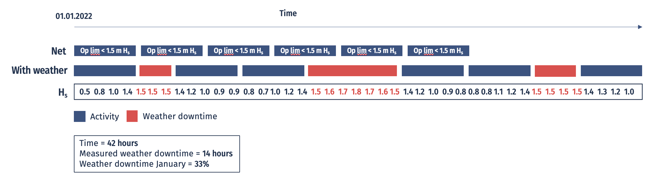
Weather data time series consist of one or more weather parameters, e.g., significant wave height or wind. You can use any weather parameter for which you have time series data available.
Tip: Weather parameters have to be added to a single file and have to be using the same time stamps so remember to format the weather file and check the resolution if you're combining multiple weather files.
These time series are used as the weather forecast in the simulation that the planning algorithm uses to look ahead to see if an operation (or combination of activities) can be carried out. If they can't weather downtime is registered for the time period when waiting.
Example
Shoreline Design case: 100 WTG installations.
For all 100 wind turbine installations, an HLV will go through a work process to assemble the constituent parts. This work process has three steps:
1. Lift the tower in place.- Duration: 7 hours
- Required weather window: 9 hours
- Wind speed: 14 m/s
- Wind speed reference height: 100 m.
- Duration: 7 hours
- Required weather window: 9 hours
- Wind speed: 14 m/s
- Wind speed reference height: 100 m.
- Duration: 7 hours
- Required weather window: 9 hours
- Wind speed: 12 m/s
- Wind speed reference height: 100 m.
When planning the start of the activities the scheduling algorithm runs a weather check to verify whether there is a suitable weather window.
For step 1, if the wind speed is less than 14 meters per second at a 100-meter height for the next 9 hours, the activity can start.
When step 1 is complete, a new weather window check for the nacelle installation starts. For this, a weather window of 9 hours with a wind speed below 14 m/s at 100-meter height is necessary.
Following completion of step 2, the same weather window for the blade installation but with a lower wind speed limitation (12 m/s) is required.
Any delay in step 1 can cause a knock-on delay to step 2 due to missing a weather window (a negative feedback loop in system theory). This interdependence between operations and vessels is not easily calculated with the statistical approach when processes become long and interdependent and tasks become dependent on each other.
Estimating weather downtime through a simulation is more accurate as it includes the variability of weather in a month and does not assume it is constant like the traditional weather window statistics approach. Simulations will provide a replay of a project in a specific weather year instead of a statistical smoothened approach.
Estimating project schedules using simulations versus the traditional approach
Weather is the main source of uncertainty in construction projects and maintenance activities, especially offshore but also onshore.
A weather downtime assessment provides input for a project plan estimation.
There are two approaches to project schedule estimation:
- The traditional approach: weather window statistics
Estimate how many weather windows there are for the different operations per month and multiply this workability percentage with the corresponding operation’s duration to get the weather-adjusted duration. - Simulation modelling:
Use a simulation tool to include all factors creating delays, including weather, and directly estimate the duration of each operation to provide a complete schedule that can easily be ranked by the completion time of the project or by the amount of weather downtime in the project.
Alternatively, use the estimated weather downtime per operation from the simulations of all weather years in your weather data as the workability percentage to create weather-adjusted durations for your net schedule.
Running simulations with Shoreline Design estimates a master schedule and weather downtime, including weather variability, in the sense that some operations will have no weather downtime because there was a good window and some will have a lot of weather downtime because there wasn't a weather window at the time. The traditional approach has a smooth curve because no variability in weather the whole month is assumed and every operation will have weather downtime. The chart below shows the difference between weather downtime estimated traditionally (orange) and with simulation (blue).
Where can I add weather data and set weather restrictions?
You can set weather in two places:
- On assets
- On bases
You can set weather restrictions in three places:
- Logistic access criteria: determines when a logistic can provide access to an asset to drop off or pick up crew.
- Logistic processes: determines when a logistic can carry out part of its work process, e.g., when a heavy lift vessel can jack up or when a crawler crane can lift components.
Which weather data is used for which operations
Which weather file is used during the simulation to determine downtime depends on the logistic and either the weather criteria or process step being simulated.
Construction
Crew transfer vessel
| Weather criteria | Weather file |
|---|---|
| Significant wave height access limit | Asset |
| Visibility access limit | Asset |
Heavy lift vessel
| Process step | Weather file |
|---|---|
| Mobilising | Base |
| Loadout | Base |
| Transit to wind farm | Asset |
| Jacking up | Asset |
| Installation | Asset |
| Jacking down | Asset |
| Transit to next asset | Asset |
| Transit from wind farm | Base |
| Arrival at base | Base |
Service operation vessel
| Weather criteria | Weather file |
|---|---|
| Significant wave height access limit | Asset |
| Visibility access limit | Asset |
| Wind speed access limit | Asset |
Helicopter
| Weather criteria | Weather file |
|---|---|
| Wind speed access limit | Asset |
| Visibility access limit | Asset |
| Significant wave height access limit | Asset |
Cable installation vessel
| Process step | Weather file |
|---|---|
| Mobilising | Base |
| Loadout | Base |
| Transit to wind farm | Asset |
| Cable laying | Asset |
| Cable burial | Asset |
| Transit to next asset | Asset |
| Transit from wind farm | Base |
| Arrival at base | Base |
Towing vessel
| Process step | Weather file |
|---|---|
| Mobilising | Base |
| Loadout | Base |
| Towing to wind farm | Asset |
| Wind turbine hook up | Asset |
| Transit from wind farm | Base |
| Arrival at base | Base |
Crane
| Process step | Weather file |
|---|---|
| Mobilising | Base |
| Transit to turbine | Asset |
| Pre-assembly | Asset |
| Transit from turbine | Base |
| Arrival at base | Base |
Anchor-handling vessel
| Process step | Weather file |
|---|---|
| Mobilising | Base |
| Loadout | Base |
| Moving to wind farm | Asset |
| Installation | Asset |
| Cable laying | Asset |
| Cable burial | Asset |
| Transit from wind farm | Base |
| Arrival at base | Base |
Heavy transport vessel / feeder/ barge
| Process step | Weather file |
|---|---|
| Mobilising | Base |
| Loadout | Base |
| Transit to wind farm | Asset |
| Jacking up | Asset |
| Installation | Asset |
| Jacking down | Asset |
| Transit to next asset | Asset |
| Transit from wind farm | Base |
| Arrival at base | Base |
Component transfer vessel
| Process step | Weather file |
|---|---|
| Mobilising | Loadout base |
| Loadout | Loadout base |
| Transit to loadoff base | Asset or loadoff base |
| Loadoff | Asset or loadoff base |
| Transit back to loadout base | Loadout base |
| Arrival at loadout base | Loadout base |
O&M
Crew transfer vsesel
| Weather criteria | Weather file |
|---|---|
| Significant wave height access limit | Asset |
| Lowest tide | Base |
Heavy lift vessel
| Weather criteria | Weather file |
|---|---|
| Significant wave height jacking limit | Asset |
| Wind speed crane operation limit | Asset |
| Wind speed limitation reference height | Asset |
| Lowest tide | Asset |
| Mobilising | Base |
| Demobilising | Base |
| Loadout | Base |
Service operation vessel
| Weather criteria | Weather file |
|---|---|
| Significant wave height access limit | Asset |
| Wind speed access limit | Asset |
| Wind speed limitation reference height | Asset |
| Lowest tide | Asset |
Helicopter
| Weather criteria | Weather file |
|---|---|
| Wind speed access limit | Asset |
| Wind speed limitation reference height | Asset |
| Visibility access limit | Asset |
| Significant wave height access limit | Asset |
Towing vessel
| Process step | Weather file |
|---|---|
| Mobilising towing in | Base |
| Transit to asset | Asset |
| Disconnect | Asset |
| Tow to port | Asset |
| Tow to wind farm | Asset |
| Preparation for work at port | Base |
| Demobilisation towing in | Base |
| Mobilisation towing out | Base |
| Preparation for work towing out | Asset |
| Hookup | Asset |
| Transit to next asset | Asset |
| Transit to port | Base |
| Demobilisation towing out | Base |
Crane
| Weather criteria | Weather file |
|---|---|
| Wind speed limit crane operation | Base |
| Wind speed limitation reference height | Base |