
How to Create a Geofence Zone
Step 1: Navigate to Site Overview
- Log in to the Shoreline Execution Platform
- From the main navigation menu, select Site Overview
- Wait for the map to fully load
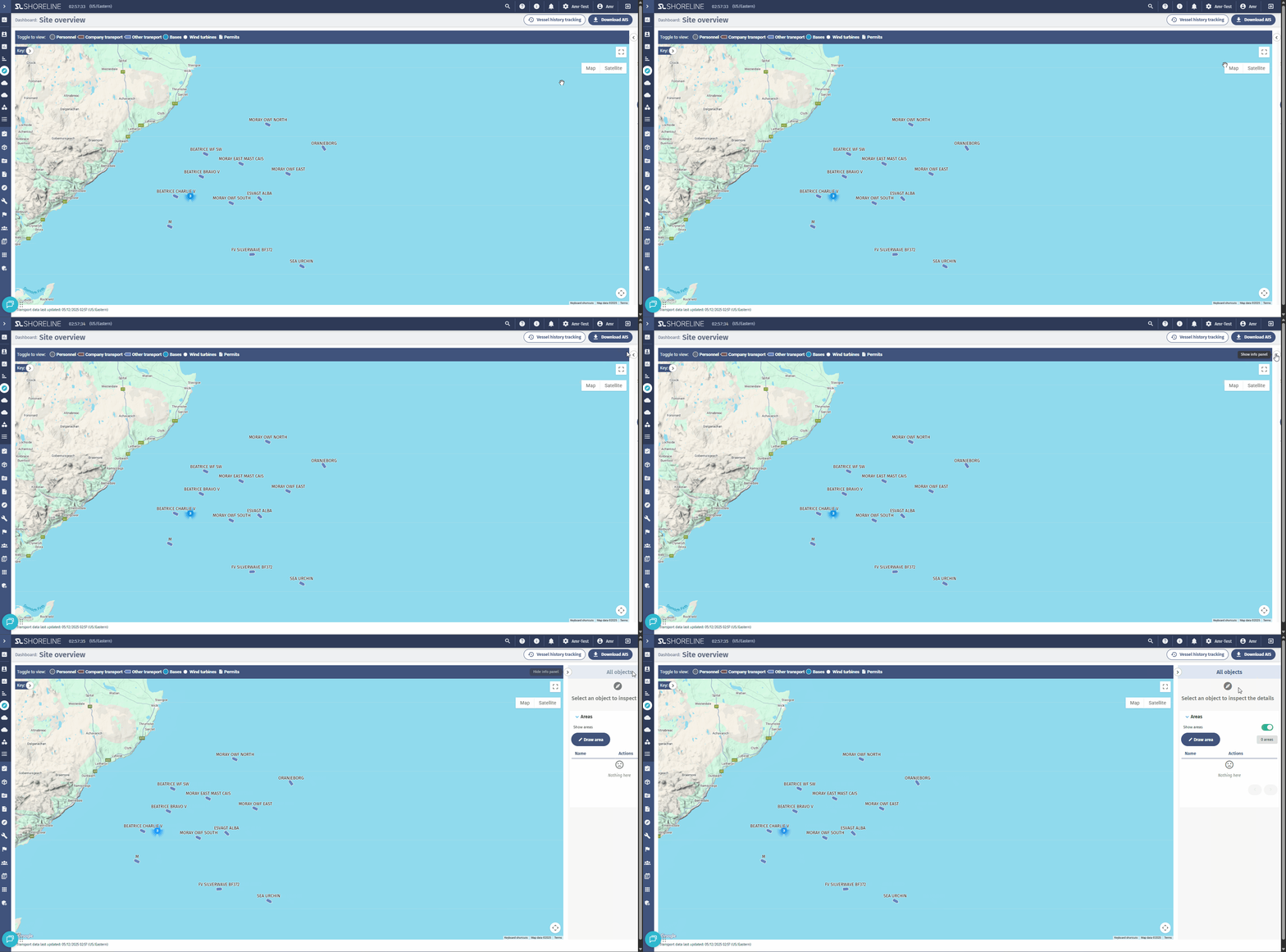
Step 2: Open the Map Areas Panel
- Locate the side panel on the right side of the map
- Look for the "Areas" section
- A toggle to show/hide existing zones
- A list of all created map areas
- A "Draw Area" button
Step 3: Start Drawing Your Zone
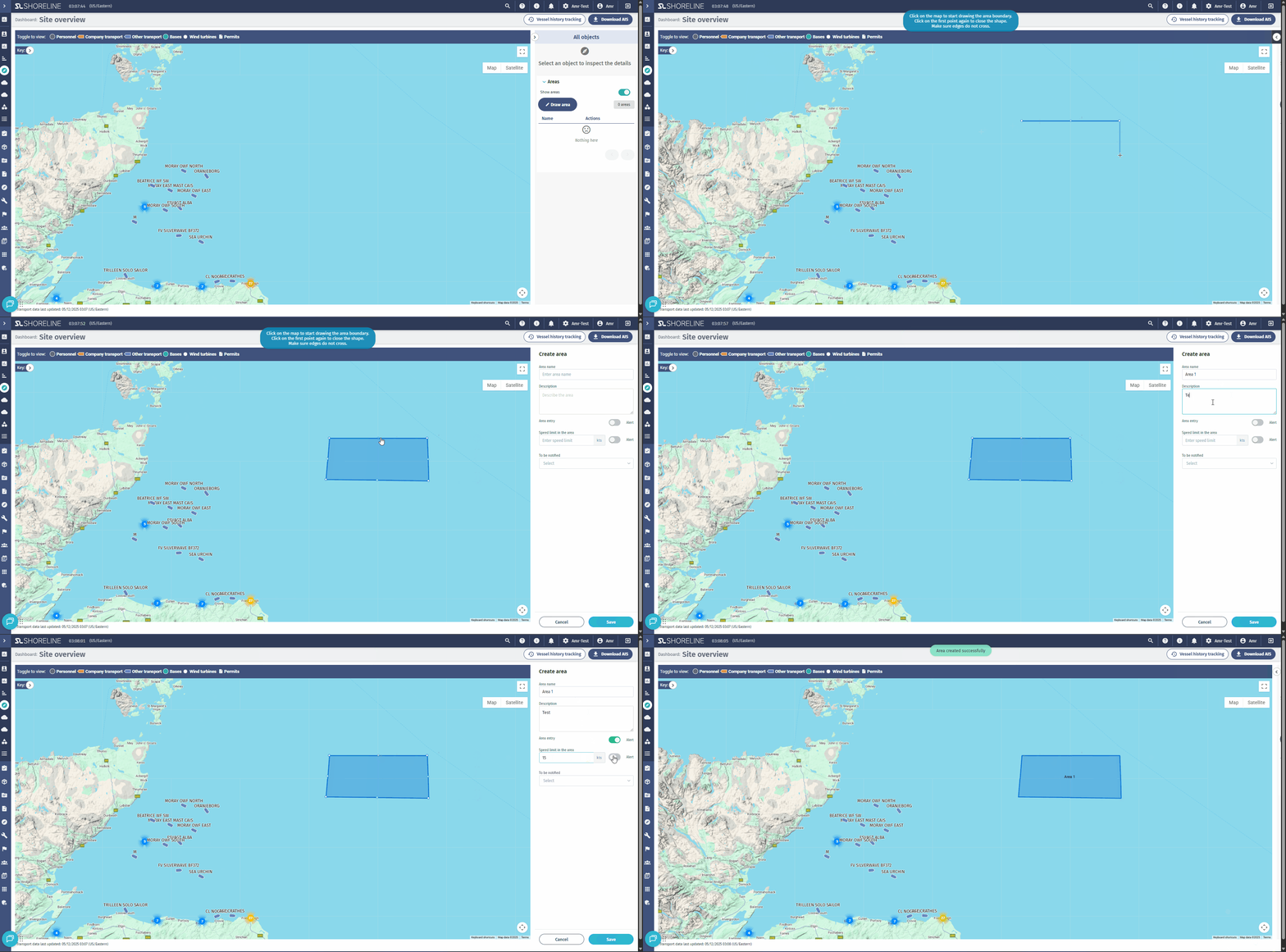
- Click the "Draw Area" button
- Your cursor will change, indicating drawing mode is active
- Click on the map to place the first point of your boundary
- Continue clicking to add more points (minimum 3 points required)
- The polygon will automatically close and complete when you finish
Drawing Tips:
- Zoom in for more precise boundary placement
- Click carefully to create clean, accurate boundaries
- If you make a mistake, you'll need to cancel and redraw
Step 4: Configure Zone Settings
After completing the polygon, a configuration panel will appear on the right side.
Required Settings:
Zone Name
Enter a clear, descriptive name for the zone.
Optional Settings:
Description
Provide additional context about the zone's purpose, restrictions, or special instructions.
Area Entry/Exit Alert
Toggle ON to receive notifications when vessels:
- Enter the zone (crossing from outside to inside)
- Exit the zone (crossing from inside to outside)
Speed Limit Alert
Toggle ON to enable speed monitoring within this zone.
Speed Limit (knots)
Only appears if Speed Limit Alert is enabled.
Enter the maximum allowed speed in knots (e.g., 5, 10, 15, 20).
Users to Notify
Select which team members should receive alert notifications for this zone.
- Click the user selection field
- Search or browse for users
- Select multiple users if needed
- Only selected users will receive notifications
Step 5: Save the Zone
- Review all settings carefully
- Click the "Save" button at the bottom of the panel
- A success message will confirm the zone was created
- The zone now appears on the map as a blue polygon with the zone name labeled in the center
Managing Existing Zones
Viewing Zones
Show/Hide All Zones:
- Use the "Show Areas" toggle in the Areas panel
- When ON: All zones display as blue polygons with name labels
- When OFF: Zones are hidden but remain active for monitoring
View Zone List:
- Open the Areas panel to see all created zones
- Each zone displays its name and basic information
- Click on a zone in the list to focus the map on that area

Editing a Zone
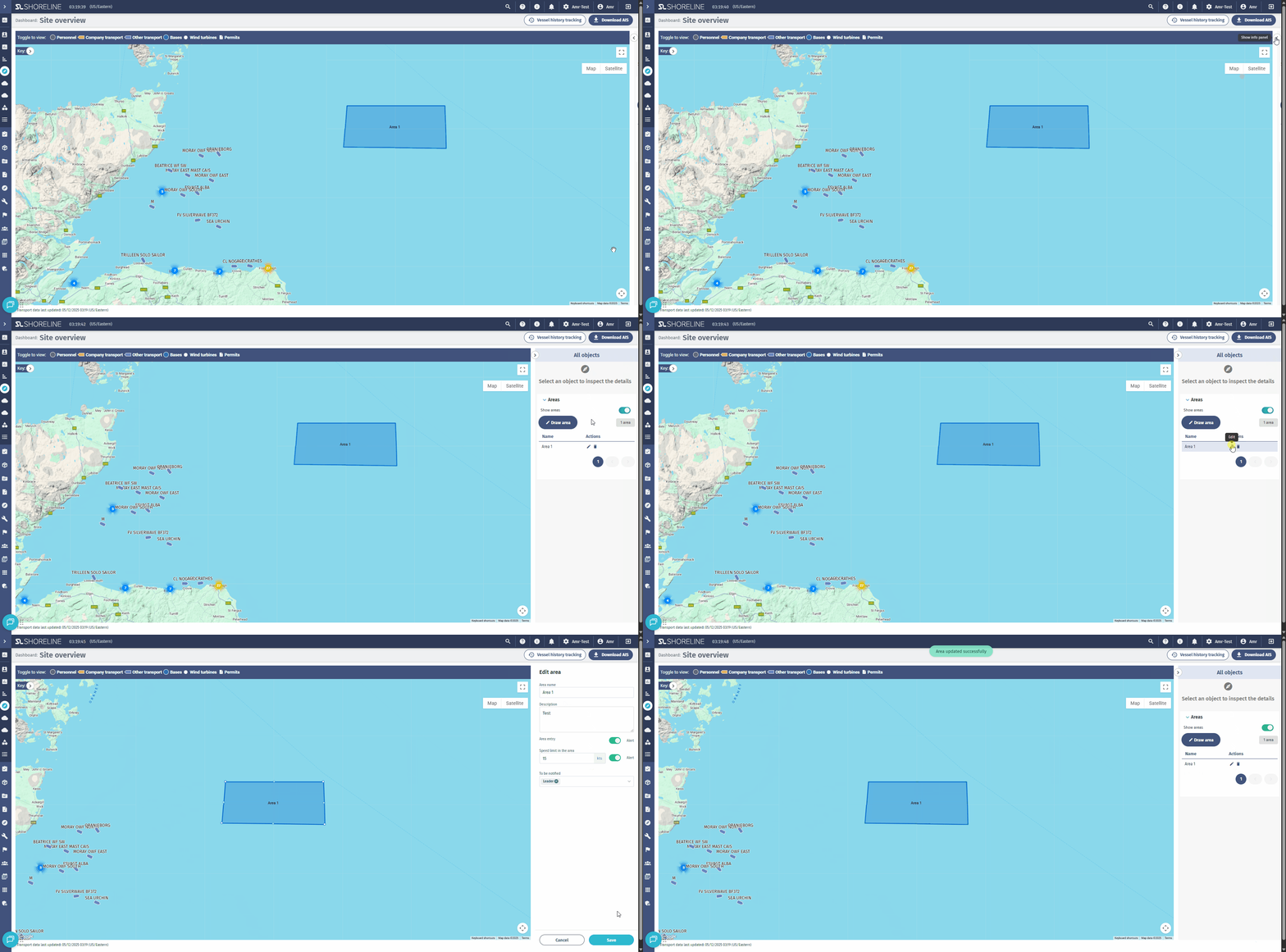
- Open the Areas panel
- Locate the zone you want to edit in the list
- Click the pencil icon (Edit button) next to the zone name
- The map will automatically pan and zoom to that zone's location
- The configuration panel opens with current settings
- Modify any settings:
- Change the name or description
- Toggle alerts ON/OFF
- Adjust speed limit
- Update notification recipients
- Click "Save" to apply changes
Deleting a Zone
- Open the Areas panel
- Locate the zone you want to delete
- Click the trash icon (Delete button)
- A confirmation dialog appears:
- Message: "Are you sure you want to delete [Zone Name]?"
- Click "Confirm" to permanently delete the zone
- The zone is immediately removed from the map and stops all monitoring
⚠️ Warning: Deletion is permanent and cannot be undone. All associated alert configurations will be lost.
Understanding Zone Monitoring
How Monitoring Works
The system continuously monitors vessel positions and compares them against all active geofence zones:
- Position Checking: Every few minutes, the system queries current vessel locations
- Boundary Detection: Determines if vessels are inside or outside each zone
- State Tracking: Remembers which vessels are currently in each zone
- Alert Triggering: Sends notifications when conditions are met
What Gets Monitored
Logistic Units Types:
- Company Units: Your fleet registered in your account
- External Units: Third-party not registered in your account
Monitored Data:
- Real-time position (latitude/longitude)
- Current speed (in knots)
- Vessel identification and name
- Timestamp of last position update
Monitoring Frequency
- Update Interval: Vessel positions are checked every few minutes (exact interval configured by system administrators)
- Not Real-Time: There may be a slight delay between a vessel crossing a boundary and the notification being sent
- AIS Dependency: External vessel monitoring depends on AIS signal availability