Monitoring Process
The system continuously monitors vessel speeds through an automated process:
1. Position Tracking
Every few minutes, the system collects current vessel positions from:
- AIS Data if available (Automatic Identification System) for vessels
- ADS-B Data if available for airplanes and helicopters
- GPS Data if available for vehicles
2. Zone Detection
The system determines which vessels are currently located within speed-monitored zones by comparing GPS coordinates against zone boundaries.
3. Speed Checking
For each vessel inside a speed-monitored zone:
- Current speed (in knots) is retrieved from AIS/ADS-B/GPS data
- Speed is compared against the zone's configured speed limit
- Violations are detected when:
Current Speed >= Configured Speed Limit
4. Alert Generation
When a speed violation is detected:
- A notification is immediately generated
- The notification is sent to all users configured for that zone
- The vessel is marked as "notified" to prevent duplicate alerts
5. Cache Management
The system tracks which vessels have already triggered alerts:
- Vessel Exits Zone: Removed from notification cache
- Vessel Slows Down: Removed from cache once below speed limit
- Re-entry or Re-acceleration: New notification can be sent
Setting Up Speed Limit Monitoring
What You Need
Before configuring speed limit monitoring, ensure you have:
- ✅ Already created a geofence zone (see Article)
- ✅ Permission to create or edit map areas
Configuration Steps
For a New Zone:
When creating a new geofence zone:
- Complete the zone boundary drawing (minimum 3 points)
- In the configuration panel, locate "Speed Limit Alert"
- Toggle "Speed Limit Alert" to ON
- Enter the maximum allowed speed in knots (e.g.,
10,15,20) - Select users in the "Users to Notify" field
- Click "Save"
For an Existing Zone:
To add speed monitoring to an existing zone:
- Navigate to Site Overview → Map Areas panel
- Find the zone in the list
- Click the pencil icon (Edit) next to the zone name
- Toggle "Speed Limit Alert" to ON
- Enter the "Speed Limit (knots)" value
- Update "Users to Notify" if needed
- Click "Save"
Where Notifications Appear
In-App Notifications:
- Notification bell icon in the platform header
- Badge counter shows number of unread notifications
- Click to view notification center with full details

Browser Notifications:
- Desktop pop-up alerts (if browser permissions granted)
- Appears even if the platform is not the active tab
Email Notifications:
- Sent to your registered email address (if email notifications are enabled in your settings)
Who Receives Notifications
- Only users you select in the zone's "Users to Notify" list
- You can update this list at any time by editing the zone
- Changes take effect immediately for new entries/exits
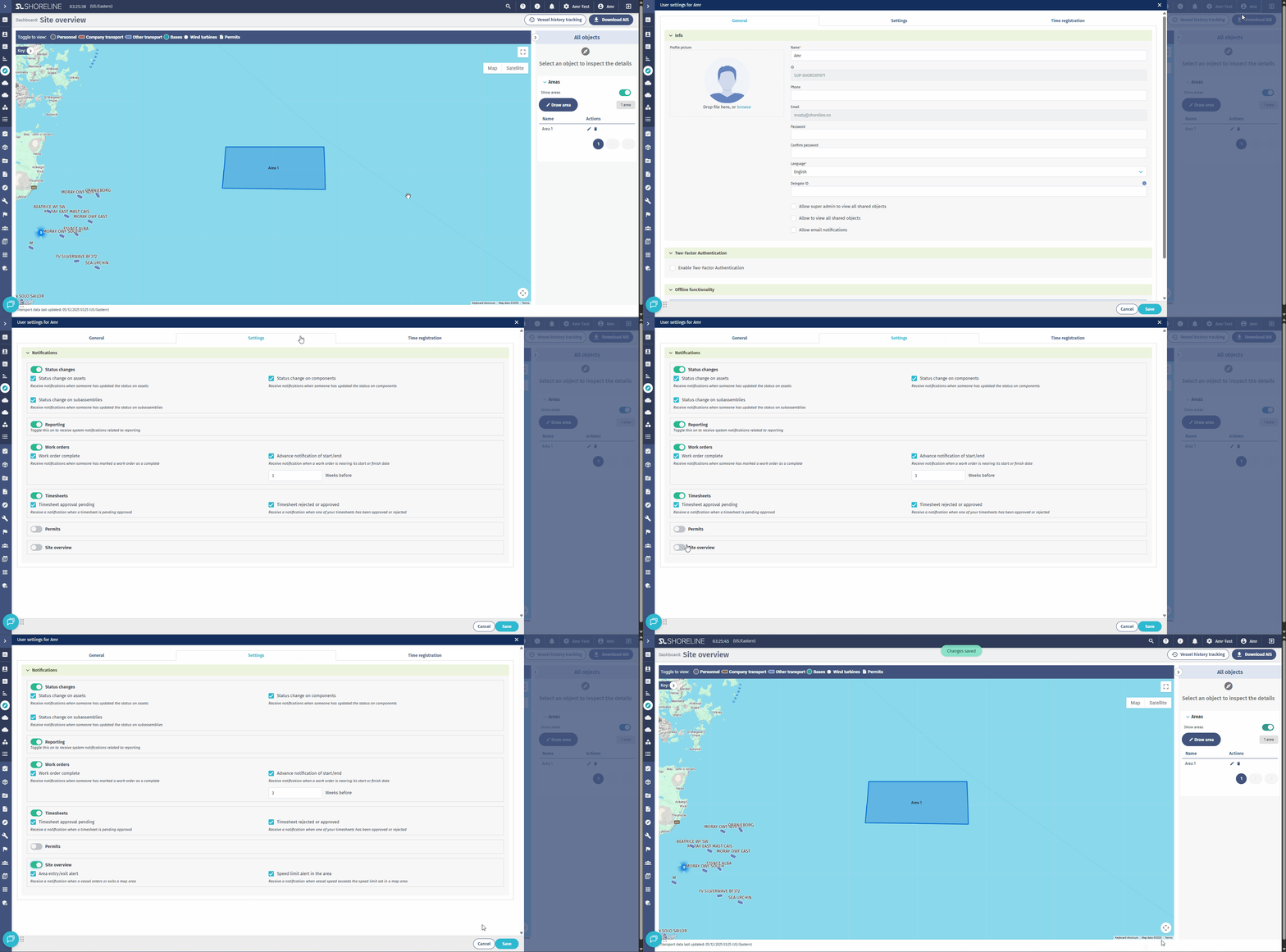
- Ensure the notifications settings are enabled for selected users(as shown in below)