
Personnel Status
Personnel Status helps you track whether a person is currently available, temporarily unavailable, pending onboarding, leaving the organization, or no longer active.
Use Personnel Status to:
- Keep personnel lists focused on people who are available for planning.
- Warn planners when non-active personnel are assigned to scheduled work.
- Control whether a person can start a new login session.
- Guide rotation creation and team-position assignment.
- Keep historical records without deleting personnel.
Table of Contents
- Status values
- Prerequisites
- Where to find Personnel Status
- Change a person’s Personnel Status
- How Personnel Status affects filters and lists
- How Personnel Status appears in dropdowns
- How Personnel Status affects planner warnings
- How Personnel Status affects activity manpower
- How Personnel Status affects rotation creation
- How Personnel Status affects login access
- Update Personnel Status by import
- Limitations
- Troubleshooting
- Status quick reference
Status values
| Status | What it means |
|---|---|
| Active | The person is currently active and available for normal planning. This is the default status. |
| On Hold | The person is still part of the organization but temporarily unavailable, for example due to leave, secondment, or a contract hold. |
| Pending | The person’s employment or onboarding is not finalized. Use this for people who should not normally appear in planning lists yet. |
| Inactive | The person is no longer active in the organization. Use this instead of deleting personnel when historical records must be kept. |
| On Notice | The person is in their notice period. They may still need login access, but planners should avoid assigning them unless appropriate. |
Prerequisites
To use Personnel Status:
- Personnel Status must be enabled for your company.
- You need access to Resources → Personnel.
- You need permission to update personnel records.
- You need the Personnel Status permission to change the status field.
- You must be online to manage personnel from the Personnel list.
- Bulk updates are supported by import, but there is no separate bulk-status update action in the Personnel UI.
Where to find Personnel Status
Personnel Status is set on the employee record.
- Go to Resources → Personnel.
- Open the person you want to update.
- Go to the General information section.
- Find Personnel Status.
- Select the correct status.
- Select Save.
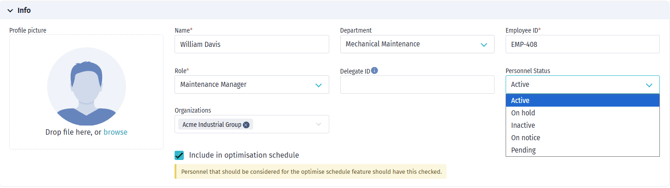
Personnel without a specific status are treated as Active by default. Existing personnel were set to Active when Personnel Status was introduced.
Change a person’s Personnel Status
- Go to Resources → Personnel.
- Open the person you want to update.
- In the employee record, find Personnel Status.
- Select one of the following statuses:
- Active
- On Hold
- Pending
- Inactive
- On Notice
- Select Save.
Changing a status can affect planning visibility, rotation assignment, and login access. Review the sections below before changing someone to On Hold, Pending, Inactive, or On Notice.
How Personnel Status affects filters and lists
Where the Personnel Status filter is available, Active and On Hold are selected by default.
By default, Shoreline includes:
- Active
- On Hold
By default, Shoreline hides:
- Pending
- Inactive
- On Notice
This keeps standard planning workflows focused on the current working population.
To find personnel with a hidden status:
- Open the relevant personnel list or planning view.
- Open the filters.
- Find Personnel Status.
- Add the statuses you want to include.
- Apply the filter.
In some selectors or views, hidden statuses may only appear when the workflow allows them, when a specific filter is changed, or when the person is already assigned to an activity.
How Personnel Status appears in dropdowns
When a non-active person appears in a personnel selector, Shoreline may show the status next to the person’s name.
Examples:
- Jane Smith (On hold)
- Alex Brown (Pending)
- John Doe (Inactive)
- Alice Green (On notice)
This helps planners identify non-standard statuses before confirming an assignment.
How Personnel Status affects planner warnings
Planner warnings appear when non-active personnel are assigned to scheduled work.
| Status | Warning level | Meaning |
|---|---|---|
| Active | No warning | The person is active. |
| On Hold | Yellow warning | The person is temporarily unavailable. |
| Pending | Yellow warning | The person is not fully confirmed or onboarded. |
| Inactive | Red warning | The person is no longer active. |
| On Notice | Red warning | The person is in their notice period. |
Warnings help planners review assignments. They do not automatically remove personnel from existing activities.
How Personnel Status affects activity manpower
When you open an activity and review the manpower section, Shoreline can show a warning if assigned personnel have a status that needs attention.
Warnings may appear for personnel who are:
- On Hold
- Pending
- Inactive
- On Notice
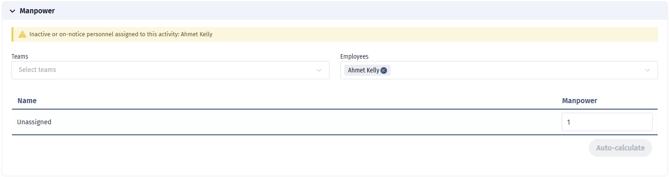
The warning lists the affected personnel so planners can review whether the assignment should remain.
If the activity is locked, manpower selections may be read-only.
How Personnel Status affects rotation creation
Personnel Status is used during rotation creation to decide who appears by default, when warnings are shown, and which personnel can be assigned to team positions.
Default personnel list
When adding personnel to a rotation, the default list includes:
- Active
- On Hold
The default list does not include:
- Pending
- Inactive
- On Notice
To include hidden statuses, adjust the Personnel Status filter in the add-personnel view.
Assigning On Hold personnel
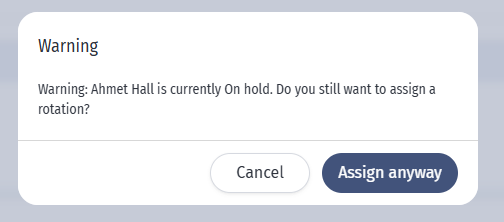
On Hold personnel can be added to a rotation, but Shoreline asks for confirmation first.
- Start creating or editing a rotation.
- Go to the assignment step.
- Add one or more personnel.
- If any selected person is On Hold, review the warning.
- Choose whether to assign them anyway or cancel.
Use this warning as a checkpoint before assigning someone who is marked temporarily unavailable.
Assigning Pending personnel
Pending personnel are hidden from the default add-personnel list.
If you need to find Pending personnel, adjust the Personnel Status filter to include Pending.
Pending personnel can be selected if included by filter, but they should be treated with caution because they are not normally part of the default planning population.
Assigning Inactive or On Notice personnel
Inactive and On Notice personnel are hidden from the default add-personnel list.
If they are included by filter and added to the rotation personnel list, they cannot be dropped into a team composition position during rotation creation. Shoreline rejects the assignment and shows an error. It will show you that the user is inactive when assigning a personnel in the Rotation page of a different user (e.g. Open User A > Rotation, add rotation, choose an inactive personnel):
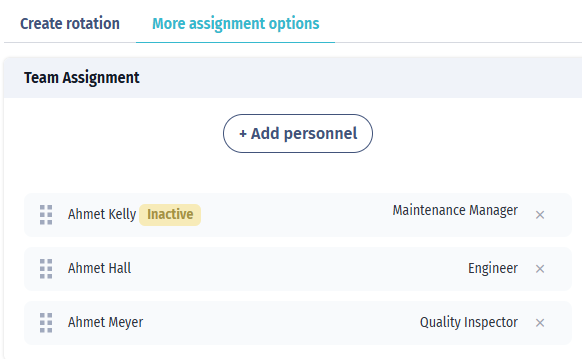
This prevents users from assigning people who are no longer active or who are leaving the organization into team positions.
You'll get the following warning when trying to add a rotation for an inactive user in the Resource Calendar:

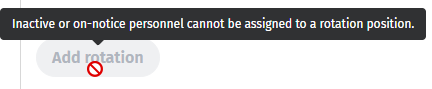
While trying to add a rotation in the Personnel page > Rotation tab of an inactive user, "Add rotation" button will be disabled:
Rotation creation behavior
| Status | Appears by default when adding personnel to a rotation? | Can be added to the rotation personnel list? | Can be assigned to a team position during rotation creation? |
|---|---|---|---|
| Active | Yes | Yes | Yes |
| On Hold | Yes | Yes, after confirmation | Yes |
| Pending | No | Yes, if included by filter | Yes, but use caution |
| Inactive | No | Yes, if included by filter | No |
| On Notice | No | Yes, if included by filter | No |
How Personnel Status affects login access
Personnel Status controls whether a person can start a new login session.
| Status | Login allowed? |
|---|---|
| Active | Yes |
| On Hold | No |
| Pending | No |
| Inactive | No |
| On Notice | Yes |
If a person is set to On Hold, Pending, or Inactive, they cannot start a new login session.
This applies to login methods supported by your organization, including username and password login, multi-factor login, and SSO-based login where applicable.
For security reasons, Shoreline may show a general login failure instead of explaining that Personnel Status is blocking access.
Important: Changing a person to On Hold, Pending, or Inactive blocks new login attempts. It may not immediately end a session that is already active.
Update Personnel Status by import
Personnel Status can be updated through personnel import.
Use this column:
| Column | Purpose |
|---|---|
| PERSONNEL_STATUS | Sets the person’s Personnel Status |
Use these import values:
| Import value | Status applied |
|---|---|
| active | Active |
| on_hold | On Hold |
| pending | Pending |
| inactive | Inactive |
| on_notice | On Notice |
Use the values exactly as shown. Values with different wording, spaces, or unsupported text are rejected.
If the PERSONNEL_STATUS column is not included for an existing person, Shoreline keeps the person’s current status. If no status exists, Shoreline uses Active.
Limitations
- Personnel Status must be enabled for your company.
- Personnel Status must be changed manually or by import.
- Personnel Status does not automatically change based on dates, contracts, onboarding progress, or notice-period dates.
- There is no separate bulk-status update action in the Personnel UI.
- Managing personnel from Resources → Personnel requires an online connection.
- Inactive personnel are not deleted. Their historical records, assignments, and timesheets remain available.
- Pending, Inactive, and On Notice personnel are hidden from default personnel filters unless explicitly included.
- Warnings do not automatically remove personnel from existing scheduled activities.
- On Hold, Pending, and Inactive personnel cannot start a new login session.
- On Notice personnel can still log in.
- Active sessions may continue until the session ends.
- Personnel Status is set for the person as a whole. It is not set separately by site, work package, rotation, or planner view.
Troubleshooting
I cannot see the Personnel Status field
Personnel Status may not be enabled for your company, or you may not have permission to access it. Contact your Shoreline administrator.
The Personnel Status field is visible but I cannot change it
Your role may not have the Personnel Status permission. Contact your Shoreline administrator.
I cannot find a person in a personnel dropdown
Check the person’s Personnel Status. If they are Pending, Inactive, or On Notice, they may be hidden by the default filter. Add the relevant status to the Personnel Status filter where available.
I see a warning icon on an activity
One or more assigned personnel may have a status that needs attention. Open the activity or review the warning details to see which personnel are affected.
I see a warning in the activity manpower section
One or more selected personnel are On Hold, Pending, Inactive, or On Notice. Review the listed names and confirm whether they should remain assigned.
I selected an On Hold person during rotation creation and saw a warning
This is expected. On Hold personnel can still be assigned, but Shoreline asks you to confirm because the person is marked temporarily unavailable.
I cannot assign someone to a team position during rotation creation
Check whether the person is Inactive or On Notice. These statuses cannot be assigned to team composition positions during rotation creation.
A person cannot log in
Check their Personnel Status. People with On Hold, Pending, or Inactive status cannot start a new login session.
An On Notice person can still log in
This is expected. On Notice affects planning visibility and warnings, but it does not block login.
A person is still using Shoreline after their status changed
They may still have an active session. Status changes block new login attempts, but they may not immediately end a session that is already active.
A personnel import failed because of Personnel Status
Check the PERSONNEL_STATUS value. Use one of the supported values: active, on_hold, pending, inactive, or on_notice.
Status quick reference
| Feature | Active | On Hold | Pending | Inactive | On Notice |
|---|---|---|---|---|---|
| Can log in | Yes | No | No | No | Yes |
| Included in default personnel filters | Yes | Yes | No | No | No |
| Visible in planner when already assigned | Yes | Yes | Yes | Yes | Yes |
| Planner warning | None | Yellow | Yellow | Red | Red |
| Appears by default when adding personnel to a rotation | Yes | Yes | No | No | No |
| Can be added to rotation personnel list | Yes | Yes, after confirmation | Yes, if included by filter | Yes, if included by filter | Yes, if included by filter |
| Can be assigned to a team position during rotation creation | Yes | Yes | Yes, but use caution | No | No |
| Dropdown label | Name only | Name with status | Name with status | Name with status | Name with status |
| Historical data kept | Yes | Yes | Yes | Yes | Yes |