
Accessing Project Settings
-
Navigate to the project folder you want to share access to.
-
In the top-right corner of the project folder, click the three-dot menu (⋮).
-
From the menu that appears, select Edit project.

This opens the project settings and permissions screen.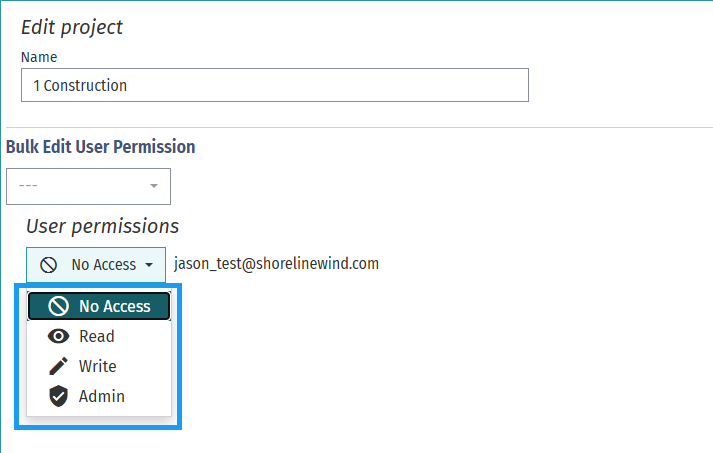
Editing Project Details
At the top of the page, you can update basic project information, such as the project name. Below this, you’ll find all permission-related controls.
Managing User and Team Permissions
The UI allows you to control access at two levels:
-
User permissions – for individual users, managed by email address
-
Team admin permissions – for users who are part of a team or admin group
User Permissions
-
Scroll to the User permissions section.
-
Locate an existing user who you would like to share access to the project with.
-
Use the dropdown menu next to the user’s email to assign an access level.
Available permission levels include:
-
No Access – user cannot view or interact with the project
-
Read – view-only access
-
Write – can edit and modify the project
-
Admin – full control, including managing permissions
Changes take effect once saved or confirmed.
Team Admin Permissions
In the Team admin permissions section, you can assign access levels to team admins in the same way—using a dropdown next to each admin’s email.
The interface may display warnings if a user’s license is invalid or expired (for example, “License expired a month ago”). In such cases, the user will not be able to access the project even if a higher permission level is selected.
Bulk Editing Permissions (Optional)
For faster management:
-
Use the Bulk Edit User Permission dropdown at the top of the permissions area.
-
Select the desired permission level to apply it to multiple users at once.
This is especially useful when onboarding or offboarding several users.
Finalizing Changes
Once all permissions are set:
-
Click Save Project to apply the changes.
-
Notify users that access has been granted or updated.
Important Notes
-
No Access means the user cannot see or interact with the project at all.
-
License status matters: Users with expired licenses cannot access projects, even if assigned Read, Write, or Admin permissions.
-
To successfully share a project, ensure:
- The user’s permission level is not set to No Access
- The user’s license is active and valid