
Overview
The Technician Contract module allows you to create, manage, and distribute employment contracts for your technicians and personnel. Using customizable contract templates with dynamic placeholders, you can generate professional contracts that automatically populate with employee information, work package details, and custom data fields.
Key Features
✅ Contract Templates – Create reusable templates with placeholders
✅ Bulk Contract Generation – Create contracts for multiple employees at once
✅ Dynamic Data Population – Automatically fill in employee details, dates, and custom fields
✅ Manual Input Fields – Add custom placeholders for contract-specific information
✅ Work Package Integration – Link contracts to specific work packages
✅ File Management – Upload, download, and manage contract documents
✅ Contract Status Tracking – Monitor active, expired, and upcoming contracts
Getting Started
Prerequisites
-
The TECHNICIAN_CONTRACT_CREATION feature flag must be enabled for your organization.
-
You need the MANAGE_PERSONNEL_CONTRACT permission to create and manage contracts.
-
You need the UPDATE_PERSONNEL_CONTRACT permission to modify contract templates.
- Permissions:
- Access or Read Personnel Contract to open contract templates and view employee contracts.
- Create Personnel Contract to create contract template groups and contract templates.
- Manage Personnel Contract to create contracts from employee profiles or bulk personnel selection.
- Update Personnel Contract to edit templates or replace an existing employee contract file.
- Download Personnel Contract to download contract files.
- Delete Personnel Contract to delete employee contracts, contract templates, or empty template groups.
Part 1: Setting Up Contract Templates
Step 1: Create a Contract Template Group
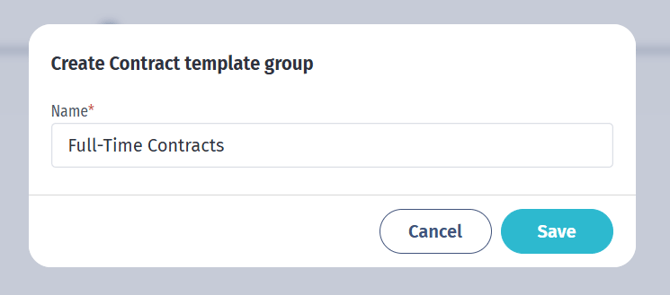
Before creating templates, organize them into groups such as “Full-Time Contracts,” “Contractor Agreements,” or “NDA Documents.
-
Go to Resources → Contract Templates.
-
Create at least one contract template group before adding templates.
-
Click Add Group, enter a group name, and save it.
-
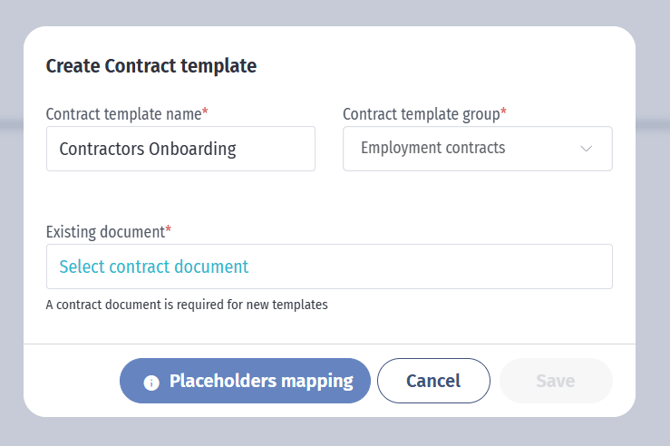
Click Add New to create a contract template.
-
Enter a template name, select a group, and upload a .doc or .docx file.
-
Template files are required when creating a new template. When editing an existing template, replacing the file is optional and requires confirmation.
- Template names must be unique within the selected group.
- Use the Placeholders button to view and copy available placeholders.
-
Placeholder Types:
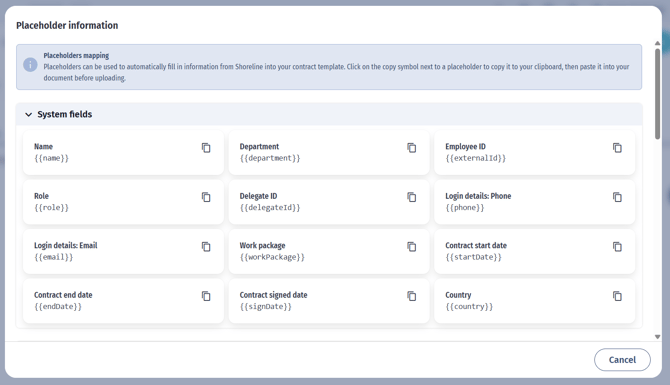
Use double curly brackets for all placeholders.
-
System fields use this format: kb-article-module-5, , , , , , , , , , , or .
-
Custom personnel fields use this format: .
-
Manual input fields use this format: true.
- Attachment custom fields are not available as contract placeholders.
- Date values are generated in DD-MM-YYYY format.
System Fields –
Example: kb-article-module-5 – Standard employee or system data
Custom Fields –
Example: – Employee custom field values
Manual Input Fields – true
Example: true – Contract-specific values entered manually
Available System Field Placeholders:
kb-article-module-5 – Employee full name
– Employee email address
– Employee phone number
– Employee department
– Employee role or position
– Employee ID
– Delegate ID
– Associated work package name
– Contract start date (DD-MM-YYYY)
– Contract end date (DD-MM-YYYY)
– Contract signature date (DD-MM-YYYY)
– Country associated with the contract
– Current date when the contract is generated
Example Contract Template:
EMPLOYMENT CONTRACT
This Employment Agreement is entered into on between [Company Name] and kb-article-module-5.
Employee Details:
Full Name: kb-article-module-5
Email:
Phone:
Department:
Position:
Employee ID:
Contract Terms:
Start Date:
End Date:
Work Package:
Country of Employment:
Compensation:
Annual Salary: true
Bonus Eligibility: true
Custom Terms:
Certification Level:
Security Clearance:
Signed on:
Step 3: Upload Your Contract Template
-
On the Contract Templates page, click Create Template.
-
Enter a template name, choose a group, and upload your .doc or .docx file.
-
Click View Placeholders to see which placeholders the system detected.
-
The system automatically extracts system fields, custom fields, and manual input fields.
-
Click Save.
Part 2: Creating Contracts for Employees
Method 1: Create Contract from Employee Profile
-
Go to Resources → Personnel.
-
Click an employee to open their profile.
-
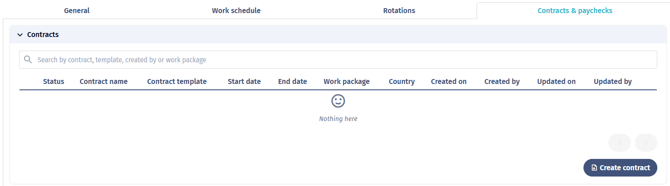
Open the Contracts & paychecks > Contracts tab.
-
Click Create Contract.
-
Complete the form.
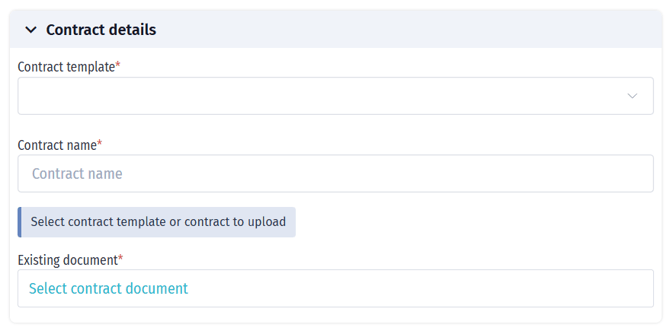
Contract details:
-
Contract template: Select your template (optional if uploading a file).
-
Contract name: Enter a unique name.
-
Contract file: Upload a pre-filled file (optional, single employee only).
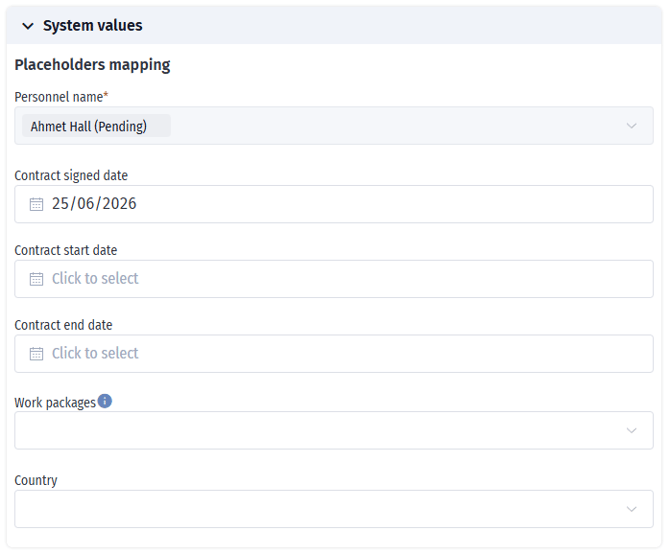
System values:
-
Personnel name (pre-filled).
-
Contract signed date.
-
Contract start date.
-
Contract end date.
-
Work packages (optional).
-
Country (optional).
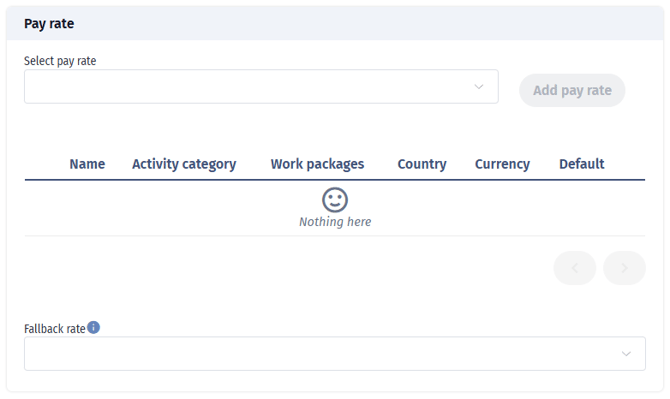
Pay rate:
- Select pay rate → Add pay rate
- Fallback rate
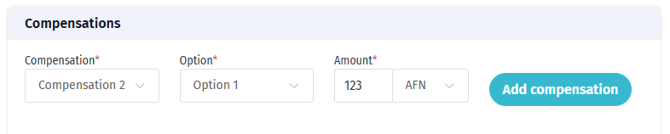
Compensations:
-
Compensation
-
Option
-
Amount → Add compensation
Method 2: Bulk Contract Creation (Multiple Employees)
Go to Resources → Personnel, select one or more employees, and click Create Contract.
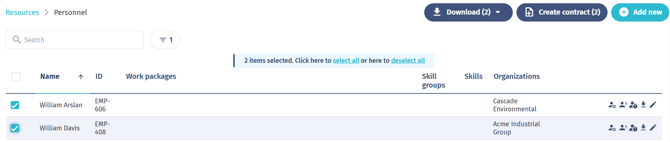
Important notes:
- Bulk contract creation is available for up to 100 selected employees.
- Manual input values entered during bulk creation are applied to all selected employees. For employee-specific manual values, create contracts individually.
- System placeholders like kb-article-module-5 are filled automatically per employee.
Part 3: Managing Contracts
Viewing Employee Contracts
Each employee’s Contracts tab shows:
🟢 Active – Contract currently in effect
🔵 Upcoming – Contract starts in the future
🔴 Expired – Contract has ended
Contracts with no end date remain Active unless their start date is in the future.
Other details include contract name, template, dates, work package, and creator.
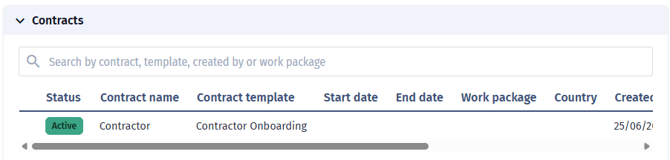
Contract Actions
-
📥 Download – Download PDF or Word file
-
📤 Upload/Replace – Upload a new version
-
🗑️ Delete – Remove the contract (requires permission)
-
👁️ View Details – Show custom and manual fields
Searching and Filtering Contracts
You can filter by contract name, template, creator, or work package.
Part 4: Managing Contract Templates
Viewing and Organizing Templates
-
Go to Personnel → Contracts → Contract Templates.
-
Templates are grouped.
-
Expand a group to view its templates.
-
Each template shows its name, file name, and number of active contracts.
Editing a Contract Template
-
Find the template and click ✏️ Edit.
-
Update its name, group, or file.
-
Click Save.
Note: Editing does not affect contracts already created.
Deleting a Contract Template
You cannot delete a template in use. The delete option is grayed out when contracts reference it.
Reordering Templates
Click and drag the ≡ handle to change order.
Viewing Available Placeholders
Click ℹ️ Placeholders to view all available system and custom placeholders.
Part 5: Understanding Manual Input Fields
Manual input fields store contract-specific values that are not stored on the employee profile.
Creating Manual Input Placeholders
Use true in your Word document, for example true or true.
Using Manual Input Fields
When generating a contract, the system shows input fields for each manual input placeholder found in the selected template.
Example Use Cases:
true – Salary amount
true – Bonus percentage
true – Probation period in months
true – Notice period in weeks
true – Special conditions or notes
Part 6: Best Practices
Template Design
✅ Use descriptive template names
✅ Group similar templates
✅ Test with sample data
✅ Document manual input fields
✅ Add version numbers when updating
Contract Management
✅ Set accurate start and end dates
✅ Link contracts to work packages
✅ Review expiring contracts regularly
✅ Protect sensitive data with permissions
Data Entry
✅ Maintain consistent formats
✅ Verify employee data before generation
✅ Double-check input for bulk creation
✅ Keep custom fields up to date
Part 7: Troubleshooting
Common Issues
❌ “Unable to create contract template group”
-
Check your permissions and ensure the group name is unique.
❌ “Placeholders not populating correctly”
-
Verify syntax, case sensitivity, and field matches.
❌ “Cannot delete template”
-
The template is in use. Delete or reassign contracts first.
❌ “File upload failed”
-
Only .doc and .docx files are supported. Check for corruption or file size limits.
❌ “Contract not generating”
-
Check that all required fields and template data are available.
Part 8: Permissions Reference
Permission – What it allows:
readPersonnelContract – View contract list.
MANAGE_PERSONNEL_CONTRACT – Create employee contracts.
UPDATE_PERSONNEL_CONTRACT – Create or edit templates.
DELETE_PERSONNEL_CONTRACT – Delete contracts.
Feature flag required: TECHNICIAN_CONTRACT_CREATION.
Frequently Asked Questions
Q: Can I create a contract without a template?
A: Yes, for a single employee using the upload option.
Q: What happens if employee data changes after generation?
A: Existing contracts remain unchanged.
Q: Can I generate contracts as PDFs?
A: The system creates Word files; you can convert them to PDF afterward.
Q: How do I handle renewals?
A: Create a new contract with updated terms. The old one will be marked as expired.
Q: Can I use one template for multiple employee types?
A: Yes, as long as it’s flexible.
Q: What date format should I use?
A: Use DD-MM-YYYY.
Support and Additional Help
For technical or policy-related questions:
-
Contact your system administrator.
-
Consult your HR team for policy clarifications.
-
Refer to the main personnel management documentation