
Troubleshooting
There are many reasons why a simulation might fail. This guide walks you through a simple process to begin narrowing down the possibilities.
Create a copy of your case and follow this guide on the case copy.
Preliminary: Run your case without weather
- Click on the Simulate tab.
- Under Weather, click Disable.

- Click Run simulation.
If the simulation still fails, there is an issue with your case configuration.
If the simulation runs, you probably have a weather restriction that is too strict. Compare the weather restrictions on your case logistics to the weather file or individually increase each restriction and re-run the case to see which is causing the failure.
Check your case configuration
Check the following in your case. Run a test simulation if you update anything.
- The Loadout base on each asset task is the same as the Port set on the logistic assigned to the task. The task will never get picked up if the two bases don’t match.
- There is a Base selected on all asset tasks.
- Task dependencies follow a logical order:
- For example, if you have 3 tasks—installation, commissioning, and testing—check that that commissioning is dependent on installation and testing is dependent on commissioning.
- Commissioning tasks have skills assigned and those skills are selected on a personnel group. Any task requiring skills that are not applied to a personnel group will never get picked up.
- The personnel with the required skills are assigned to the correct vessel: ensure the correct SOV is aligned to the correct task with the correct personnel.
- If your case includes multiple logistics of the same type (e.g., HLV) with different ports, select the relevant individual logistic from the task drop-down menu. Do not select, e.g., All HLVs.
- Deselect any logistics not used on a task or that does not exist in your case.
- On your Strategy tab:
- You have finished adding your scheduling strategy and have avoided adding multiple scheduling times close to each other.
- The Minimum working length does not exceed the duration of any individual task in your case. Any task with a duration that exceeds the minimum working length will never get picked up.
- The Break time in total per work shift is less than the value for the Work-shift length.
If your simulations are still failing, please contact support.
Common issues
This page lists common problems and possible solutions. If your simulations are failing, check our troubleshooting page. If an error or problem persists after reviewing these pages, please contact support.
General
My simulation fails.
Check the in-app notifications by clicking on the notification icon in the top-right corner and follow the guidance or address any errors there. If you don’t have any notifications, check our troubleshooting guide.
I can’t edit my case.
If you have successfully run simulations, the case editing function is locked. You need to clear the runs before you can edit your case again. There are two ways to do this:
- Click on X simulation runs at the top right.
- Click Clear all runs & output.
- Click Delete.
Alternatively, you can click twice on the X icon at the top right.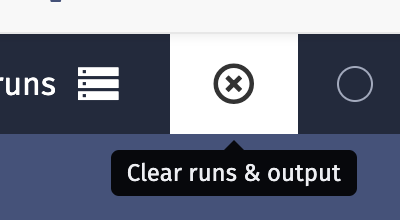
I want to customize my case’s bases or upload my own weather files.
Your input library acts as your account’s master data. From here, you can create and customize bases, assets, logistics, and weather. Anything in your input library is available to add to any cases you create. See the Input library section of our documentation for full details.
I want to input data in a different format.
Shoreline supports CSV uploads for assets and weather files. It is not possible to upload any other file types.
When you upload a file, make sure you select the correct column and decimal delimiters.
Weather
My weather matrix does not allow me to select certain criteria. The selections are greyed out.
The greyed-out options are probably not included in your weather file. Check the Add weather page for more details.
The ERA5 weather data is missing some weather data.
The ERA5 weather data is provided by Copernicus. Any weather data that is missing will be entered as NaN in an ERA5 file. Shoreline reads this as 0. See the How to add weather files to a case article for more information.
I want to select more than one weather file for an asset or base.
Sometimes a base or asset sits on the boundary between weather tiles on the map. It isn't possible to select more than one weather tile file at a time. If this accuracy is essential to your case, you can download both weather files, combine them, and reupload them.
Sometimes the Apply everywhere button helps if the simulation has issues with the weather, in such a case usually multiple weather files are involved, and after 1 file is selected the other can be selected again, and the case works again with multiple files.
Bases
My logistic is sailing across land or through an obstacle.
By default, any logistic follows the most direct route from point A to point B. Define a custom route to avoid this problem.
Assets
I am not able to add a process step before the first step.
Add the step after the first step, then drag and drop the newly created step to the first position.
Personnel
My subcontractor utilization is more than 100 percent.
This is due to how subcontractor utilization is calculated. Please see the adding and editing personnel page for more details.
Logistics
My vessel only follows the custom route sailing from the wind farm, but not when sailing to the wind farm.
Check that the first step in the custom route has the same coordinates as the base.
My logistic is sailing across land.
By default, vessels follow the most direct line from port to their destination, regardless of obstacles. You need to define a custom route around any landmass or other obstacle.
Costs
The currency information listed in the Cost tab of my base is not reflected in my case output.
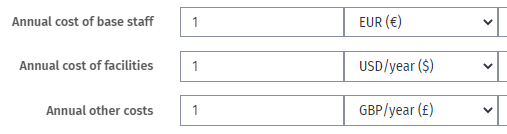
You can set different cost currencies in many places throughout the Design interface. Currently, different currencies are not reflected in the output. In the screenshot below, the output total would be 3 despite there being 3 different currencies.
We recommend that you use the same currency throughout your case to ensure that the sums are meaningful.
Strategy
One or more of my tasks aren't being completed.
Check the Minimum working length value on the Strategy tab. This is not the maximum working hours of an individual per week/month but rather the minimum working length on any single task.
If you have, e.g., a Minimum working length of 12 hours and a task duration of 10 hours, the task won't get completed. Set a lower value, e.g., 1 hour as the Minimum working length to ensure all tasks get done.