How Entry/Exit Monitoring Works
Detection Process
Entry/exit monitoring automatically alerts designated users whenever a tracked entity — vessel, vehicle, or aircraft — crosses the boundary of a configured geofence zone. The detection runs continuously in the background with no manual intervention required.
The system continuously tracks positions and detects boundary crossings through an automated process:1. Position Polling
Every few minutes, the system retrieves current positions for all tracked entities:
- AIS Data (Automatic Identification System) for vessels
- GPS Tracking for vehicles
- ADS-B for aircraft
2. Boundary Analysis
For each tracked entity, the system determines:
- Is the entity currently inside any geofence zone?
- Was the entity inside the zone during the previous check?
3. State Comparison
By comparing current position with previous state:
- Entry Detected: Vessel moved from outside to inside the zone
- Exit Detected: Vessel moved from inside to outside the zone
- No Change: Vessel remained in the same state (no notification)
4. Notification Delivery
When entry or exit is detected, notifications are immediately sent to all users you've designated for that zone.
Setting Up Entry/Exit Notifications
What You Need
Before configuring entry/exit notifications:
- ✅ Already created a geofence zone (see Article)
- ✅ Permission to create or edit map areas
Configuration Steps
For a New Zone:
When creating a new geofence zone:
- Complete the zone boundary drawing (minimum 3 points)
- In the configuration panel, locate "Area Entry/Exit Alert"
- Toggle "Area Entry/Exit Alert" to ON
- Select users in the "Users to Notify" field
- Click "Save"
For an Existing Zone:
To enable entry/exit monitoring on an existing zone:
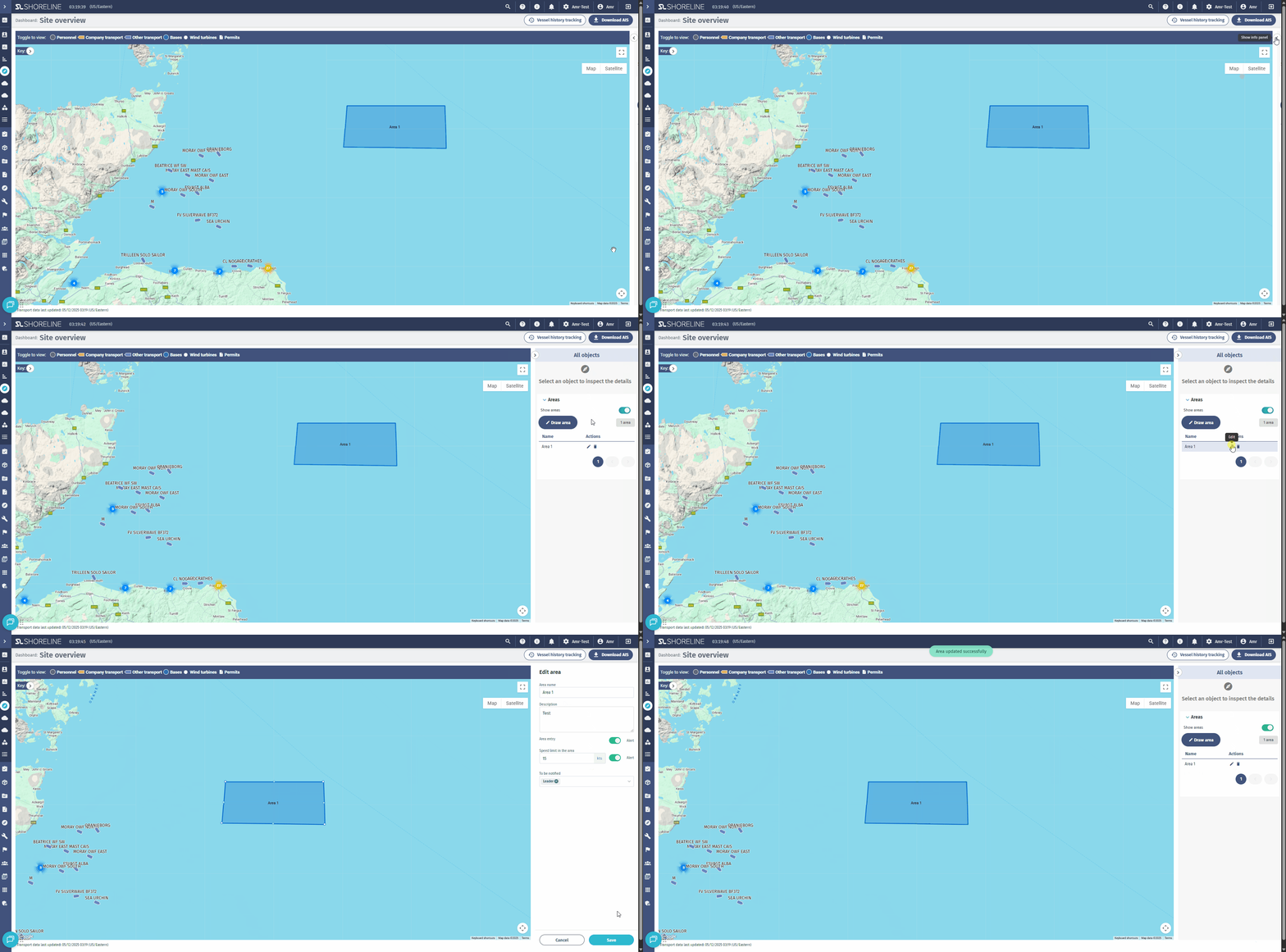
- Navigate to Site Overview → Map Areas panel
- Find the zone in the list
- Click the pencil icon (Edit) next to the zone name
- Toggle "Area Entry/Exit Alert" to ON
- Update "Users to Notify" if needed
- Click "Save"
Where Notifications Appear
In-App Notifications:
- Notification bell icon in the platform header
- Badge counter shows number of unread notifications
- Click to view notification center with full details

Browser Notifications:
- Desktop pop-up alerts (if browser permissions granted)
- Appears even if the platform is not the active tab
Email Notifications:
- Sent to your registered email address (if email notifications are enabled in your settings)
Who Receives Notifications
- Only users you select in the zone's "Users to Notify" list
- You can update this list at any time by editing the zone
- Changes take effect immediately for new entries/exits
- Users without notification settings enabled will not receive alerts, even if added to the notify list
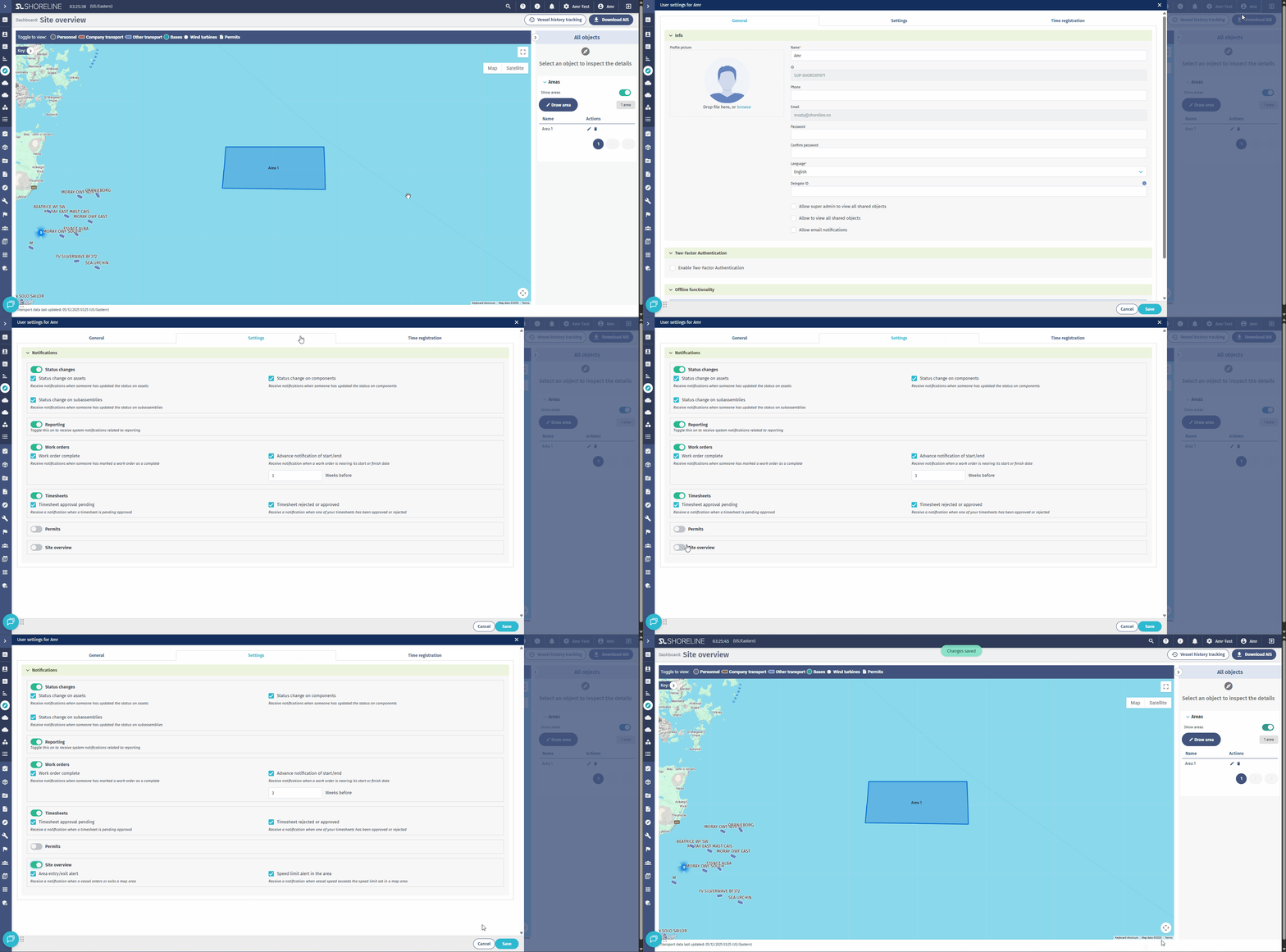
- Ensure the notifications settings are enabled for selected users(as shown in below)