
Shoreline v2.5.0 is a major step forward for mobile, with the Shoreline Platform now shipping as a Progressive Web App that can be installed on phones, tablets, and desktops and used like a native application. We have also given the web app a facelift with some new color. The release also expands platform language support to Spanish, Polish, and French, adds bulk activity moves in the planning board, brings asset-hierarchy browsing into defects, makes the defect reviewer field mandatory with improved approval notifications, and delivers a long list of operational quality-of-life improvements and customer-reported fixes across work orders, defects, checklists, reporting, personnel, imports, and the Gantt chart.
Mobile and Progressive Web App
Install Shoreline as an app on any device
Link to article
What's new
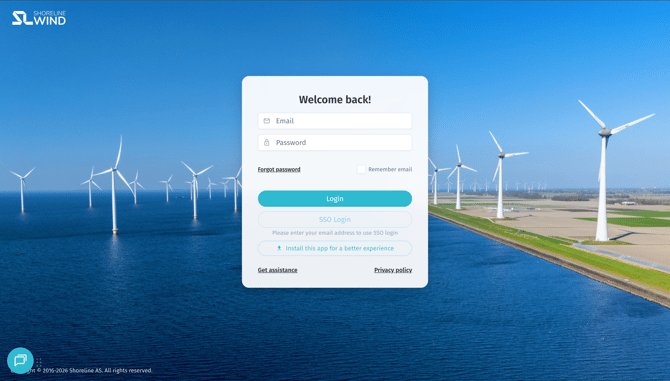
The Shoreline Platform is now a Progressive Web App (PWA). Users can install Shoreline directly from their browser on phones, tablets, laptops, and desktops, and launch it like any other native application — with its own icon, full-screen window, and offline-aware behaviour.
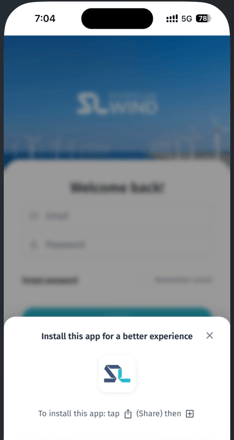
An install prompt appears automatically on supported devices, and an inline Install app button is also available on the login page so users can install at any time. On iOS, the prompt explains how to add Shoreline to the home screen using the share menu, since iOS does not support automatic installation. If a user dismisses the prompt, it will not reappear for two weeks.
The app uses a Workbox-based service worker to cache app assets, which makes subsequent loads faster and allows the app shell to display an offline fallback when connectivity is lost. A non-blocking update prompt notifies users when a new version is available so they can refresh on their own schedule.
Where to find it
- Install prompt on first visit on supported devices
- Install app button on the login page
- iOS: Share menu → Add to Home Screen
How to try it
On Android or desktop Chrome/Edge, open the Shoreline Platform and either accept the install prompt when it appears or click Install app on the login page. Confirm Shoreline launches in its own window with the Shoreline icon.
On iPhone or iPad, open Shoreline in Safari, tap the share icon, and choose Add to Home Screen.
Redesigned mobile experience
What's new
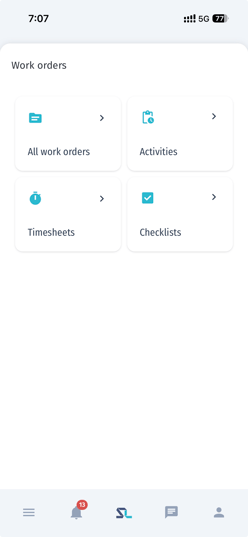
The platform now has a dedicated mobile layout that adapts to phone and tablet screens. Key additions include:
- A mobile bottom navigation bar with the most-used sections, plus an unread chat badge for HubSpot support.
- A mobile menu with full navigation, the Info Centre, and a logout option.
- A mobile header actions panel so per-page actions remain reachable without crowding the main view.
- Mobile card layout for tables — PrimeVue data tables collapse to a card-per-row layout on small screens, with row actions standardised through a shared component.
- Mobile-optimised modals — modals auto-size to the viewport, the close button is repositioned for thumb reach, and backdrops use a subtle blur for better focus.
- Safe area handling on iOS — layouts respect the iPhone notch and home indicator across the navigation, modals, HubSpot chat, and the notification centre.
- Mobile checklist improvements — assessment options on checklists now include icons and a streamlined layout for on-site use, and Element Plus has been upgraded to resolve select-visibility issues on small screens.
- Mobile defect control dashboard — the dashboard layout has been adjusted for small screens.
- Tiled landing view for sub-navigation routes — section landing pages now use a tile grid that works well on touch devices.
Some pages remain desktop-focused for now, including the Work Order Progress Dashboard, which is hidden on mobile in this release.
Where to find it
The mobile experience activates automatically on phone and tablet viewports across the platform.
How to try it
Open Shoreline on a phone or tablet and navigate through Work Orders, Activities, Checklists, Defects, and Time Registration. Confirm the mobile bottom bar appears, tables collapse to cards, modals fit the viewport, and the safe area is respected at the top and bottom of the screen on iOS.
Offline-aware behaviour and update prompts
What's new
Shoreline now shows an offline fallback screen if the network is unavailable when launching the installed app, and a non-blocking update prompt appears when a new version of the platform has been deployed. The update prompt lets users refresh on their own schedule rather than being forced to reload mid-task.
Where to find it
Anywhere in the app once installed as a PWA.
How to try it
Install Shoreline as a PWA, then take the device offline and reopen the app — confirm the offline fallback is displayed. When the next platform release is deployed, confirm the update prompt appears and refreshing applies the new version.
Languages and translations
Spanish, Polish, and French language packs
What's new
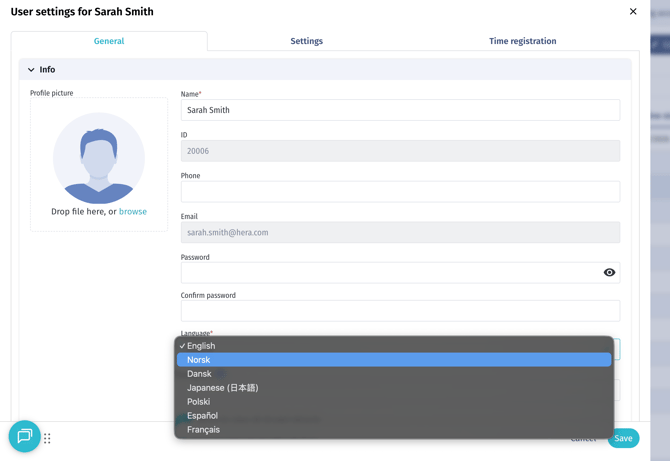
Three new language packs ship in this release:
- Spanish (
es) - Polish (
pl) - French (
fr)
Japanese (ja) translations have also been refreshed and expanded.
Each new pack adds over 7,000 translated strings, bringing the supported languages to:
- English
- Norwegian
- Danish
- Japanese
- Spanish
- Polish
- French
Where to find it
User settings → Language.
How to try it
Open user settings and switch the application language to Spanish, Polish, or French. Confirm the navigation, modals, tables, and notifications appear in the selected language.
Work orders, activities, and the planning board
Bulk move activities in the timeline
What's new
The planning board now supports bulk moving activities by column, allowing planners to reschedule large sets of work in one operation rather than dragging each item individually. The feature includes safeguards for partial moves, header-height stability after a bulk move, and improved redraw behaviour to avoid scroll jumps.
Where to find it
Planning Board → timeline → column bulk reschedule action.
How to try it
Select a column or range in the timeline, trigger the bulk move action, and confirm the affected activities are rescheduled correctly without scroll jumps or header collapse.
Work Order Progress Dashboard — performance, validation, and date-lock improvements
What's new
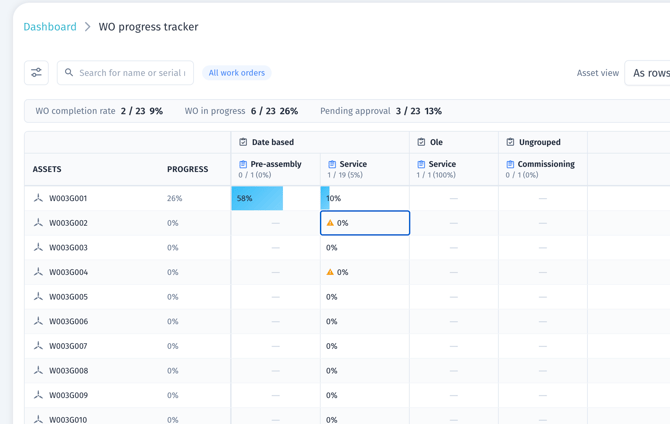
The Work Order Progress Dashboard introduced in v2.4.0 has been substantially hardened in this release. Updates include faster grid rendering for large work programmes, server-side validation on quick updates, and stricter handling of locked actual start dates so that protected fields can no longer be changed accidentally from the grid. Date-change confirmations are now consistent across the dashboard, and the layout has been refreshed with theme-aware styling for better readability. Warnings are shown as triangles when work orders are overdue.
Where to find it
Dashboards → Work Order Progress.
How to try it
Open the Work Order Progress Dashboard and scroll through a large work programme — the grid should now render noticeably faster. Try changing an actual start date on a work order with a locked start, and confirm the system prevents the change with a clear message.
Bulk edit work plan association
What's new
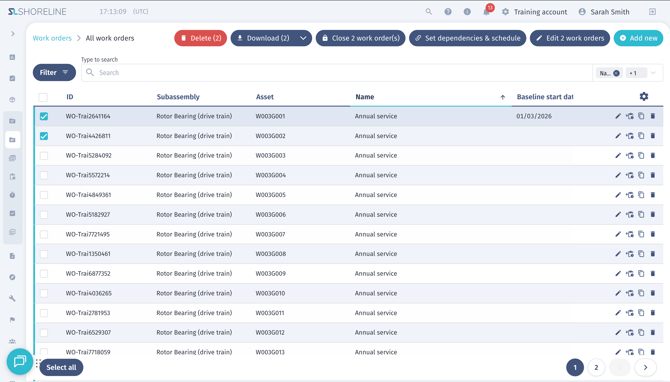
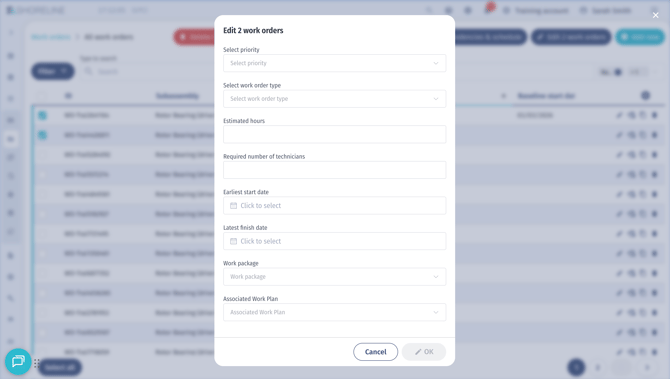
The Work Order Bulk Edit modal now supports editing the work plan association across multiple work orders in one operation. Previously, the work plan link could only be set when importing or by editing each work order individually.
Where to find it
Work orders list → select multiple → Bulk Edit → Work plan field.
How to try it
Select two or more work orders in the work order list, open the bulk edit modal, and assign or change the work plan. Confirm the selected work orders all reflect the updated work plan after saving.
Search and date ranges on the asset modal work order table
What's new
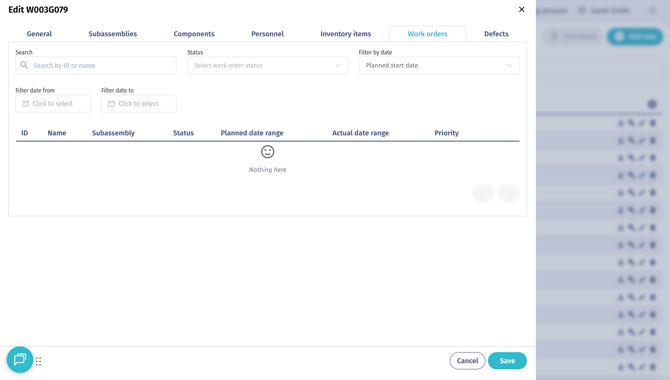
The work order table inside the asset modal now supports searching by ID or name and includes dedicated columns for planned and actual date ranges. Date filters now align strictly to the planned date fields, removing previous ambiguity about which dates the filter applied to.
Where to find it
Sites → asset modal → work orders tab.
How to try it
Open an asset modal with several work orders attached, use the new search field to find a work order by ID or name, and apply a date filter. Confirm it filters against the planned date fields and that the planned and actual date range columns are visible.
Activity duration showing zero on work orders
What's new
A bug where activity duration could display as 00:00 on work orders has been fixed. Duration is now computed correctly from the activity's start and end dates, with a guard against negative values when an end date precedes a start date.
Where to find it
Work orders → activity details.
How to try it
Open a work order with activities and confirm the duration field shows the correct elapsed time. Edit start and end dates and confirm the duration updates accordingly.
Defects and checklists
Asset hierarchy browser has been refreshed
What's new
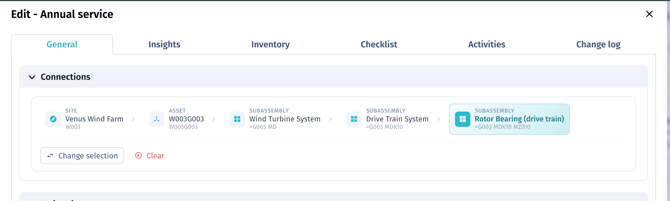
A new Asset Browser is now embedded in the different forms where you can select from the asset hierarchy, allowing users to select the affected asset by drilling through the asset hierarchy instead of searching by name. The browser shows external IDs in breadcrumbs, supports search with safeguards on input length and sort, and adapts dialog sizing for both desktop and mobile.
Where to find it
Defects → create or edit a defect or work order → connection section
How to try it
Open the defect form, use the new Asset Browser to navigate the hierarchy to the affected asset, and confirm the breadcrumbs show the external ID. Try the search field within the browser and confirm sort behaviour is stable.
Site and asset on the checklist
What's new
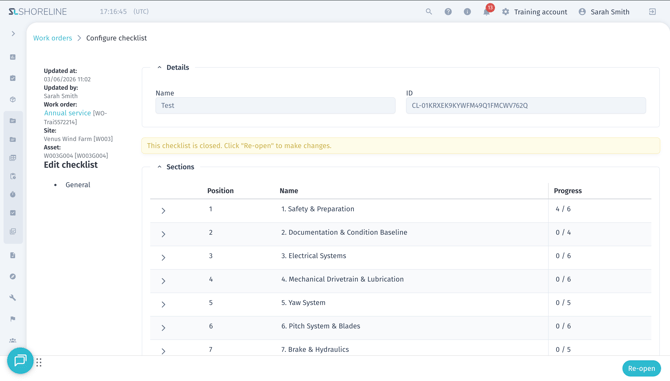
The checklist configuration page now shows the site and asset that a checklist belongs to in the sidebar, making it easier to confirm context when editing checklist templates and assigned checklists. The checklist list now also includes columns for number of defects, work order, and asset.
Where to find it
Checklists → configure checklist → sidebar; Checklists list view.
How to try it
Open a checklist for configuration and confirm the site and asset are displayed in the sidebar alongside the existing checklist details. Open the checklist list and confirm the new columns are visible.
Checklist status field
What's new
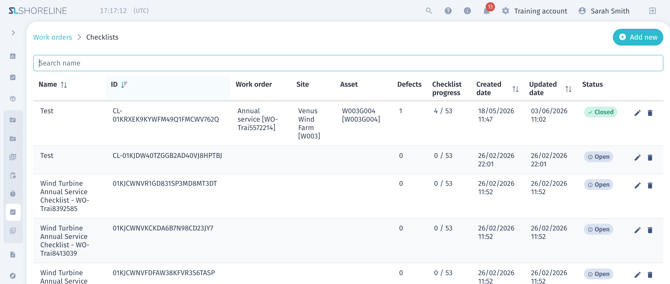
Checklists now have a status field with two states:
- Open
- Closed
Once a checklist is closed it is locked from further edits, preventing accidental changes to finalised records. Search has also been added to the checklist list so users can quickly find a specific checklist.
Where to find it
Checklists → checklist details and checklist list.
How to try it
Open a checklist, move it through Not started → In progress → Closed, and confirm the locked state prevents further edits after closing. Use the new search field in the checklist list to locate a specific checklist by name.
Reviewer field mandatory on defects, with improved approval notifications
What's new
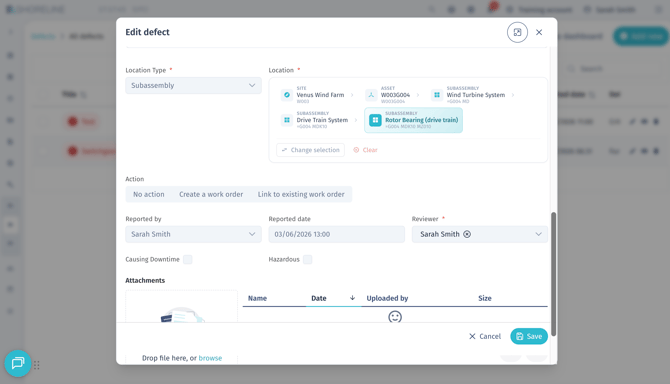
The Reviewer field on defects is now mandatory, ensuring every defect has a clear owner for approval. Several supporting improvements ship alongside this change:
- Approval remarks now render properly when defects use HTML formatting, and a missing Remark field has been added back to the defect detail view.
- Approval notifications are only sent when a user explicitly clicks Send and Notify; saving a defect normally no longer triggers stray notifications.
- The list of notified users is now reliably persisted with each approval, making the audit trail more accurate.
Where to find it
Defects → defect form and defect detail view.
How to try it
Create a new defect and attempt to save it without selecting a reviewer — the system should require one before saving. On an existing defect, add an approval remark with formatting and confirm it renders correctly in the detail view. Send a defect for approval using Send and Notify and confirm only that action triggers notifications.
Defect notification emails
What's new
A bug where defect notifications were not being sent via email under certain configurations has been fixed. Email notifications for defects now reliably reach the configured recipients.
Where to find it
Defect notifications across the platform.
How to try it
Trigger a defect notification that should generate an email, for example by submitting a defect for approval, and confirm the email is delivered to the configured recipients.
Personnel and skills
Any / all skills match mode on skill group filters
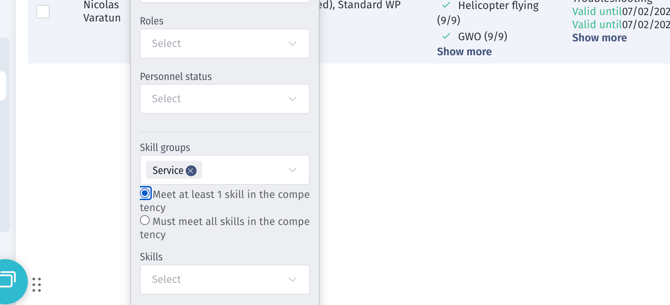
What's new
The skill group filter now supports a match mode toggle, allowing users to choose between:
- Any — a person matches if they have at least one of the selected skills
- All — a person matches only if they have every selected skill
Expired and pending skills are excluded from match evaluation, so filter results reflect the personnel actually qualified today.
Where to find it
Personnel list and any page using the skill group filter.
How to try it
Open the personnel list, apply a skill group filter, and toggle between Any and All. Confirm the filtered list shrinks or grows as expected, and that personnel with expired or pending skills are not counted as matches.
Personnel page performance
What's new
A customer-reported issue where the personnel page loaded very slowly and occasionally crashed the browser has been addressed.
Where to find it
Personnel page and employee filters.
How to try it
Open the personnel page on an environment with a large number of employees and confirm the page loads within a reasonable time and remains responsive while scrolling and filtering.
Personnel filtering by skill group returns the correct results
What's new
A bug where filtering personnel by skill group returned no results has been fixed. Skill group filters now reliably return the matching personnel.
Where to find it
Personnel page → skill group filter.
How to try it
Open the personnel list and apply a skill group filter that should match at least one person. Confirm the matching personnel appear in the list.
Imports
Personnel import no longer creates duplicate locations
What's new
A bug where importing the same personnel file twice would add a new location entry for each row, even when the location was unchanged, has been fixed. The user importer now reuses the existing location when it is the same.
Where to find it
Personnel import.
How to try it
Run a personnel import, then run the same import again with no changes. Confirm no duplicate locations are created.
Reporting
DPR total man-hours refresh on manual manpower edits
What's new
The Total Man-Hours summary in the Daily Progress Report (DPR) now refreshes immediately when manpower rows are edited manually. Previously, manual edits would not be reflected in the total until the report was reloaded.
Where to find it
Daily Progress Reports → manpower section.
How to try it
Open a DPR, manually edit a manpower row, and confirm the Total Man-Hours summary updates instantly without reloading the report.
Site overview
Site overview SIMOPS warning and date filtering
What's new
Several related issues affecting the site overview sidebar have been resolved. SIMOPS warnings continue to apply to all asset types, but are now more accurate:
- SIMOPS warnings no longer appear when no work orders are shown in the sidebar.
- False-positive SIMOPS warnings on cable-type assets have been fixed.
- SIMOPS overlap detection has been corrected so warnings only appear when work orders actually overlap.
- The date filter no longer mutually excludes work orders with actual versus planned dates — a work order will match if either set of dates falls within the filtered range.
- The sidebar now refreshes immediately when the date filter changes.
- A "stale" SIMOPS badge that occasionally persisted after filtering has been fixed.
Where to find it
Site overview → asset side panel.
How to try it
Open the site overview, apply a date filter to the sidebar, and confirm that work orders match on either actual or planned dates. Open a cable-type asset that previously triggered a false SIMOPS warning and confirm the warning only appears when work orders actually overlap.
Work plans visible on the site overview sidebar
What's new
Work orders with an associated work plan now consistently appear on the work plan view in the site overview sidebar. Previously, some work plan-linked work orders could be missing from this view.
Where to find it
Site overview → asset side panel → work plan view.
How to try it
Open an asset with work orders linked to a work plan and confirm the linked work orders are listed under the work plan in the sidebar.
Planning and Gantt
Responsive utilisation icons in the Gantt chart


What's new
In the personnel and transport utilisation row of the Gantt chart, icons in narrow month and year cells now automatically switch to compact dots when there isn't enough room to display the full icon. This keeps the utilisation overview readable when zoomed out to wider time horizons.
Where to find it
Planning Board → Gantt view → utilisation header row.
How to try it
Open the Gantt chart and zoom out to a month or year view. Confirm the utilisation cells display dots instead of icons when the cells become narrow, and that the dot styling remains aligned with the colour coding from the standard view.
Bulk dependency date calculation no longer adds an extra day
What's new
A bug where the bulk dependency and date tool added an extra day to work order dates has been fixed. Bulk-applied date shifts now match the intended day count exactly.
Where to find it
Work orders → bulk edit → dependency and date tool.
How to try it
Select a group of work orders and apply a bulk date change using the dependency and date tool. Confirm the resulting dates land on the expected day, with no off-by-one offset.
Admin and settings
Permission rank validation
What's new
Users can no longer update permissions for roles that rank higher than their own. The validation is now enforced on both the frontend and the backend.
Where to find it
Account settings → Permission Matrix and Permission Policies.
How to try it
Sign in as a user without the highest-rank role and attempt to modify a higher-rank role from the Permission Matrix. Confirm the action is blocked with a clear message.
Remove user from team
What's new
A bug where the Remove from team action in the team modal did not work has been fixed. Removing a user from a team now persists correctly.
Where to find it
Teams → edit team → remove user action.
How to try it
Open a team modal, remove a user from the team, save, and confirm the user no longer appears in the team's user list.
Fixes and quality improvements
Vessel availability switch
What's new
A bug affecting the availability switch on the vessel modal has been fixed. Boolean property updates on vessels now use a safer comparison helper, ensuring the saved value matches what the user selected.
Where to find it
Vessels → vessel modal → availability switch.
How to try it
Open a vessel, toggle the availability switch, save, and confirm the value persists correctly.
Rotation event date pickers
What's new
A bug where the period date pickers on personnel rotations appeared blank after adding a new rotation event has been fixed. The pickers now display the correct period dates immediately after a new event is added.
Where to find it
Personnel → rotations → add rotation event.
How to try it
Add a new rotation event for a person and confirm the period date pickers are populated correctly.
Report asset retention
What's new
A bug where cancelling a percentage update in a report would unexpectedly remove the asset from the work order has been fixed. Cancelling the update now correctly leaves the work order unchanged.
Where to find it
Commissioning reports → percentage update flow.
How to try it
Open a report, start a percentage update, cancel before confirming, and verify the asset remains associated with the work order.
How to access and enable
| Feature | Where to enable or configure |
|---|---|
| Install Shoreline as a PWA | Login page → Install app, or browser install prompt; iOS: share menu → Add to Home Screen |
| Mobile layout and bottom navigation | Activates automatically on phone and tablet viewports |
| New language packs (Spanish, Polish, French) | User settings → Language |
| Asset Browser in defect form | Defects → create / edit defect (no configuration required) |
| Any / All skill group match mode | Personnel list → skill group filter |
| Mandatory defect reviewer | Defects → defect form (enforced from this release) |
| Checklist status field | Checklists → checklist details (no configuration required) |
| Defect list filters | Defects page → filter panel (no configuration required) |
| Bulk edit work plan association | Work orders → Bulk Edit |
| Work Order Progress Dashboard hardening | Dashboards → Work Order Progress (no configuration required) |
Upgrade notes
The following items may require administrator review after upgrading to v2.5.0:
| Feature | Default behaviour |
|---|---|
| Progressive Web App | Install prompts are enabled by default; the Work Order Progress Dashboard is hidden on mobile in this release |
| Service worker caching | Workbox-based service worker registers automatically on first load |
| New language packs | Available to all users via user settings — no admin action required |
| Site overview date filter | Behaviour change: actual and planned dates now match independently |
| Mandatory defect reviewer | Existing defects without a reviewer will need one assigned before they can be saved again |
| Checklist closed state | Locks editing once a checklist is closed |
| Permission rank validation | Enforced server-side from this release |
Recommended post-upgrade checks
- Test the PWA install flow on Android, iOS, and desktop browsers in your environment, and confirm HTTPS is in place. PWAs do not install over plain HTTP.
- Verify the mobile bottom navigation, mobile menu, and mobile modals render correctly on the device types your users actually use.
- Validate defect notification email delivery in your environment.
- Verify site overview date filtering behaves as expected for assets with both actual and planned dates.
- Confirm the Work Order Progress Dashboard renders quickly for your largest work programmes.