
Use Shoreline as an app
Shoreline is available as a Progressive Web App (PWA). This means you can use Shoreline in your browser or install it on your device so it opens like an app.
You can install Shoreline on desktop, tablet, and mobile devices. No app store installation is required.
Use the Shoreline app to access your daily work, including work orders, time registration, checklists, defects, inventory, and other field or office workflows.
The native Shoreline mobile app is no longer supported. Use the Shoreline web app (PWA) in a supported browser instead.
Table of Contents
- What the Shoreline app is
- Where to find the install option
- Install Shoreline as an app
- Sign in
- Navigate Shoreline on different devices
- Work with work orders
- Register time
- Complete checklists
- Report defects
- Work offline
- Update Shoreline
- Prerequisites and limitations
- Troubleshooting
What the Shoreline app is
The Shoreline app is a Progressive Web App. It runs in your browser, but it can also be installed on your device for a more app-like experience.
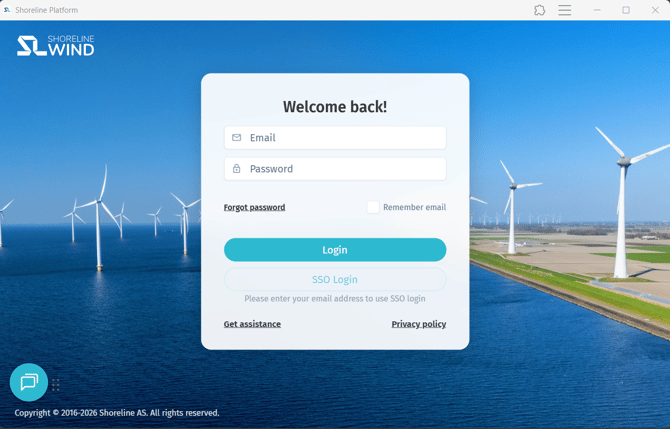
When installed, Shoreline opens from your:
- Desktop
- Dock
- Taskbar
- Application launcher
- Tablet home screen
- Mobile home screen
The installed app uses the same Shoreline environment you installed it from. For example, if you install Shoreline while using ex.demo.shoreline.no, the installed app opens that same Shoreline environment.
Where to find the install option
You can install Shoreline from the browser while you are using Shoreline.
Depending on your device and browser, you may see:
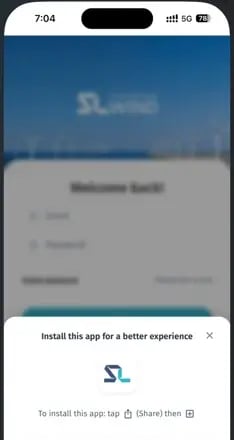
- An install button on the Shoreline login screen
- An install icon in the browser address bar
- A browser menu option such as Install app
- On iPhone or iPad, the Add to Home Screen option in Safari
The install option is only shown when Shoreline is opened in a supported browser and is not already installed on that device.
Install Shoreline as an app
For full installation instructions, see: Install Shoreline as an app
In general:
- On desktop, use Chrome or Microsoft Edge.
- On Android, use Chrome.
- On iPhone or iPad, use Safari and choose Add to Home Screen.
- You do not need to install Shoreline from the Apple App Store or Google Play Store.
After installation, open Shoreline from your device like any other app.
Sign in
- Open Shoreline in your browser or from the installed app.
- Enter your email address and password, or use your company sign-in option if available.
- Complete multi-factor authentication if your company requires it.
- Wait for Shoreline to finish loading before starting work.
For best results, sign in while you have a stable internet connection. This allows Shoreline to fully load and cache content for offline use.
Navigate Shoreline on different devices
Shoreline adjusts to the device you are using.
On desktop and larger screens, you may see wider tables, side navigation, and more information on screen at once.
On tablets and mobile devices, Shoreline may use:
- A menu icon for opening the main navigation
- Section tiles or cards
- Stacked cards instead of wide table rows
- Full-screen forms and dialogs
- Buttons fixed near the bottom of the screen for important actions
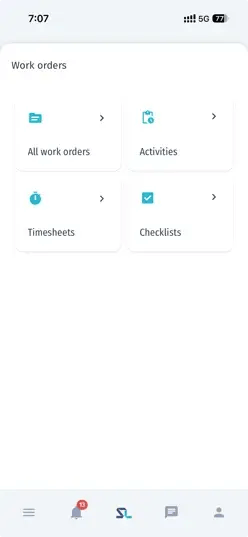
Use the navigation menu to move between areas such as:
- Dashboard
- Work orders
- Work packages
- Timesheets
- Inventory
- Defects
- Checklists
- Reports
- Resources
The areas you see may depend on your company setup, your user permissions, and your device.
Work with work orders
Work orders show the jobs assigned to you or available for your team.
- Open Work orders.
- Select the work order you want to review.
- Review the work order details, such as description, asset, location, planned time, assigned personnel, and related information.
- Review any required checklist, safety, or documentation information.
- Update the work order as you progress.
- Save your changes.
Depending on your permissions and the work order status, you may be able to:
- Start work
- Update progress
- Add notes
- Add or review checklist information
- Register time
- Add material usage
- Add photos or attachments
- Report defects
- Finish or close the work order
Some actions may be unavailable if the work order is read-only, already closed, or waiting for approval.
Register time
Use time registration to record the hours you worked on an activity, work order, or assignment.
- Open Dashboard or Timesheets, depending on your company workflow.
- Select the relevant date.
- Choose Register new activity or add a time entry.
- Select the activity, work order, or work package if required.
- Enter the start and end time, or the total duration.
- Add any required comments or details.
- Save the entry.
If your company uses timesheet approval, saved time entries may need to be added to a timesheet and submitted for approval.
Submit a timesheet
Timesheets collect time entries for review and approval.
- Open Timesheets.
- Create a new timesheet or open an existing draft.
- Select the relevant date range.
- Add the time entries you want to submit.
- Review the entries for accuracy.
- Select the reviewer or approver if required.
- Save or submit the timesheet.
Timesheets may use statuses such as:
| Status | Meaning |
|---|---|
| Draft | The timesheet is still being prepared |
| Pending | The timesheet has been submitted for approval |
| Signed | The timesheet has been approved |
| Rejected | The timesheet needs changes |
| Locked | The timesheet can no longer be edited |
If a timesheet is rejected, review the comments, correct the entries, and submit it again.
Complete checklists
Checklists help you confirm that required inspection, safety, quality, or handover steps are completed.
- Open the related work order or checklist.
- Review the checklist details.
- Complete each checklist step.
- Select the correct assessment for each step.
- Add notes, values, photos, or documentation if required.
- Save your progress.
- When all required steps are complete, close the checklist if your workflow requires it.
Checklist assessments may include:
| Assessment | When to use it |
|---|---|
| OK | The step has been completed and meets the requirement |
| Not OK | There is an issue that must be reported or reviewed |
| N/A | The step does not apply |
If you select Not OK, Shoreline may guide you to create a defect so the issue can be reviewed.
Reopen or edit a checklist
Some checklists can be closed after completion. A closed checklist may become read-only.
If you need to make changes after closing a checklist:
- Open the checklist.
- Check whether Re-open is available.
- Reopen the checklist if your permissions allow it.
- Make the required changes.
- Save and close the checklist again.
If you cannot reopen a checklist, contact your supervisor or administrator.
Report a defect
Use defects to report problems found during work, inspection, or checklist completion.
- Open the relevant work order, checklist, asset, or defect area.
- Choose Add defect or select Not OK on a checklist step if available.
- Enter a clear title.
- Add a description of the issue.
- Select the category and priority if required.
- Confirm the location, asset, or component.
- Add photos or supporting information if available.
- Select a reviewer if required.
- Save the defect.
A good defect report should explain:
- What was found
- Where it was found
- How serious it is
- Whether work can continue safely
- What evidence is attached
Work offline
Shoreline can support offline work when your connection is unstable or unavailable. Offline mode must be enabled for your company, and each user can also turn offline mode on or off in their user settings.
Before going offshore or into an area with poor connection:
- Sign in while you are online.
- Open the work orders, checklists, and activities you expect to use.
- Allow Shoreline to finish loading.
- Keep Shoreline open or installed on the device.
While offline, you may be able to continue working with information already loaded on the device.
You may need internet access to:
- Sign in for the first time
- Load new assignments
- Send submitted time or timesheets
- Sync updates with the office
- Receive real-time changes from other users
- Upload larger attachments or photos
When your connection returns, review your work and confirm that changes are saved and synced.
If you do not see offline options, offline mode may not be enabled for your company. Contact your Shoreline administrator.
Update Shoreline
Shoreline may show a message when a new version is available.
- Select Update now when the update message appears.
- Allow Shoreline to reload.
- Continue working in the updated version.
Keeping Shoreline updated ensures you have the latest features, improvements, and security fixes. Updates are applied automatically when you accept the prompt — no manual download or installation is needed.
Prerequisites
To use Shoreline as an app, you need:
- A Shoreline user account
- Access to the Shoreline environment you want to use
- A supported browser (Google Chrome, Microsoft Edge, or Safari on iOS)
- Internet access for sign-in and syncing
- The required permissions for the areas you need to use
Your available menu items and actions depend on your role, permissions, and company configuration.
Limitations
- The old native Shoreline mobile app is deprecated.
- Shoreline is now used through the browser or installed from the browser as a Progressive Web App.
- The installed app opens the same Shoreline environment it was installed from.
- If you need access to multiple Shoreline environments, install or open each environment separately.
- Some actions require an internet connection.
- Some information must be opened while online before it is available offline.
- Some records may be read-only depending on their status.
- Closed, approved, signed, or locked records may not be editable.
- Some features may not be available to all users.
- Uploading photos or attachments may require a stable connection.
- The exact menu names and available fields may vary by company setup.
Troubleshooting
I cannot sign in
Check that you are using the correct Shoreline environment and have an internet connection. If your company uses single sign-on or multi-factor authentication, complete the required sign-in steps. Contact your supervisor or IT administrator if you still cannot access Shoreline.
I cannot see a menu item
Your role may not include access to that area. Contact your supervisor or Shoreline administrator to confirm your permissions.
I cannot edit a work order, checklist, defect, or timesheet
The item may be closed, submitted, approved, signed, locked, or otherwise read-only. Check the status of the item. If you still need to make changes, contact your supervisor or administrator.
My changes are not syncing
Check your internet connection. If you were working offline, reconnect and allow Shoreline time to sync. Refresh only after you are confident your saved work has synced.
I cannot upload a photo or attachment
Check your connection and file size. If you are offline or on an unstable connection, try again when you are back online.
The installed app opens the wrong Shoreline environment
The installed app opens the environment it was installed from. Open the correct Shoreline environment in your browser and install Shoreline again from there.
The installed app does not open correctly
Open Shoreline in your browser and confirm that the environment works. If needed, remove the installed shortcut and install Shoreline again from the browser.
I am using an old mobile app
The native Shoreline mobile app is no longer supported. Open Shoreline in a supported browser (Chrome, Edge, or Safari) and use the current Shoreline web app (PWA) instead.